Add watermark to photo previews
Place a name, copyright line, website, or “preview only” notice on portfolio and client-review copies. Adjust each photo rather than covering the subject mechanically.
CreatorsPrivate text and logo watermark maker
Watermark images before you publish a portfolio preview, client proof, product photo, or sample. Add a text watermark or upload a logo, position it precisely, adjust opacity, and export a full-resolution PNG in your browser.
Your photo and logo stay in this browser session; the tool does not add our brand to your download.
Upload one JPG, PNG, or WebP, create a multiline text watermark or add your own image watermark, set any angle, and inspect the final placement before downloading.
Start with the image you own or are authorized to edit. Then style a text mark or upload your logo.
Select a watermark on the preview. Drag the round handle above it to rotate, the corner handle to resize, or the copy handle to duplicate it. Review the full image before export.
Visible watermarks can discourage casual reuse and preserve attribution, but they can be cropped, edited, or removed. Never use a watermark to hide passwords, IDs, addresses, financial details, or other sensitive information; use solid redaction first.
Choose a visible mark that explains ownership or intended use while leaving the important part of the picture readable.
Place a name, copyright line, website, or “preview only” notice on portfolio and client-review copies. Adjust each photo rather than covering the subject mechanically.
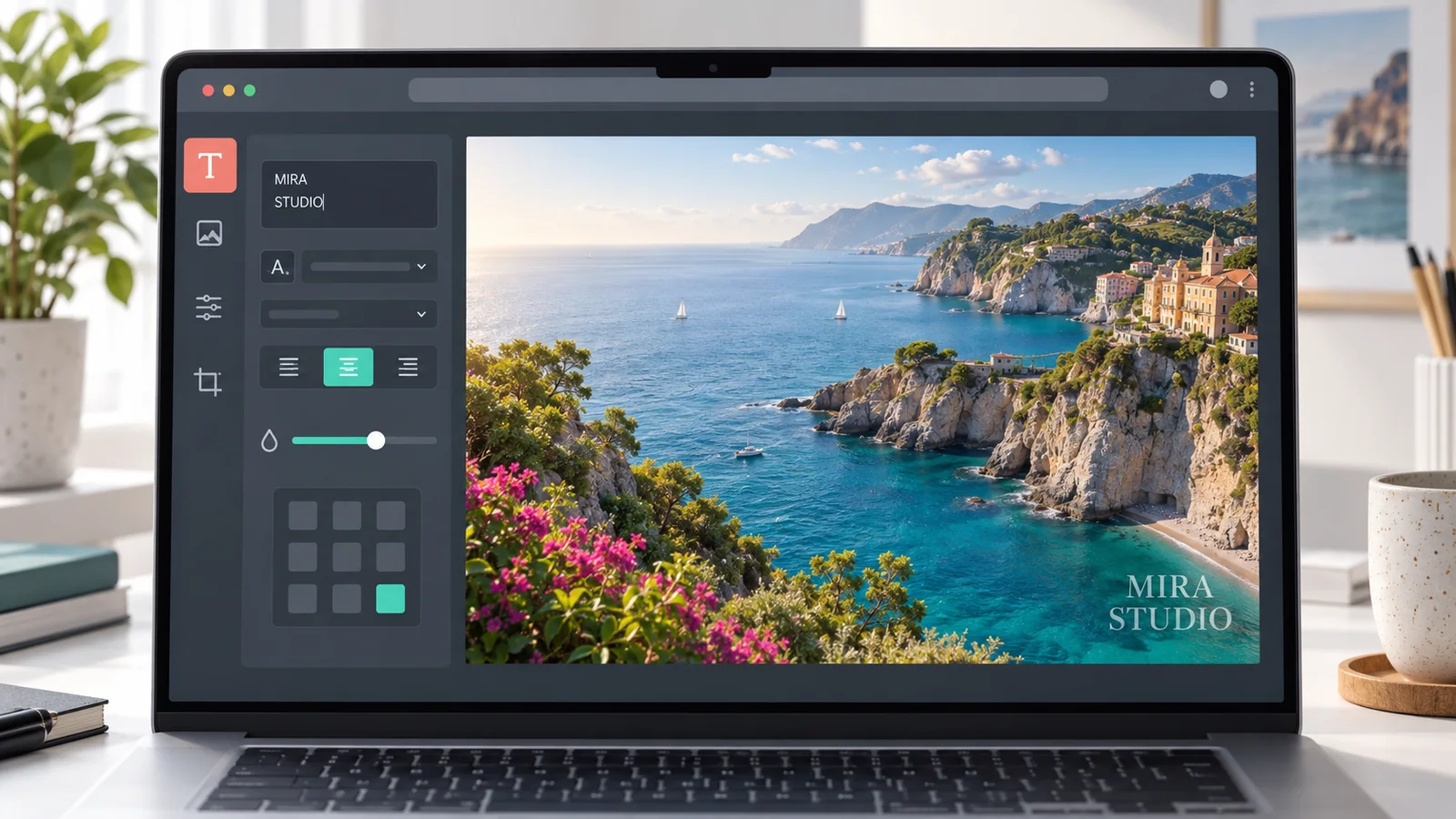
CreatorsBuild a multiline text mark with proportional sizing, a color, outline, optional background, opacity, rotation angle, and a position that fits the photo.
TextUpload your own PNG, JPG, or WebP logo, scale and rotate it freely, lower its opacity, and snap it to a corner or drag it manually.
LogoGood placement balances attribution, readability, and the reason you are sharing the image.
Use multiple lines for a creator name and usage note. Tune text size as a percentage of the image, add a restrained outline or background when contrast changes, then reduce opacity until the mark remains legible without dominating the photograph.
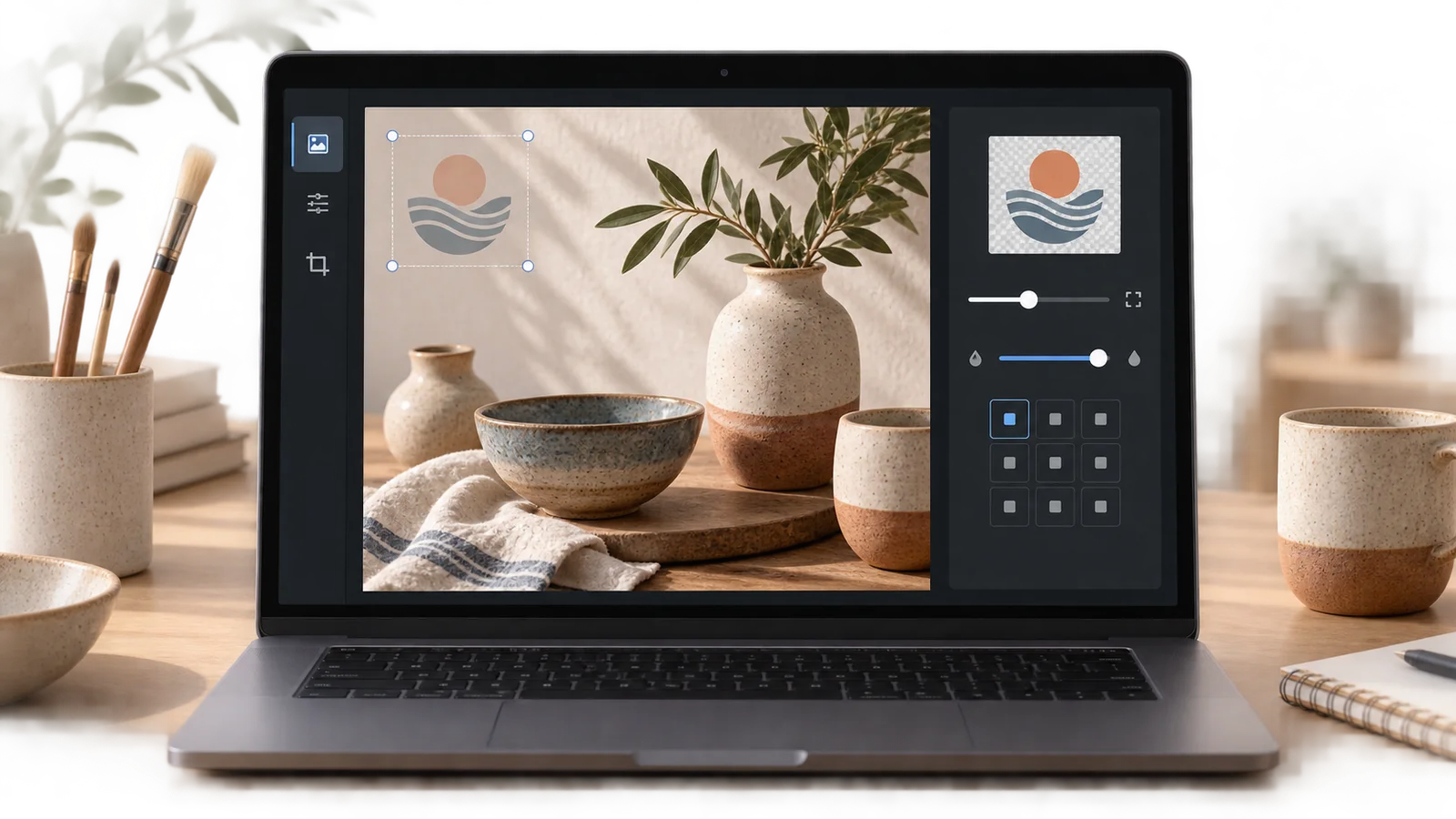
A transparent logo watermark works well for product photos and portfolio samples. Start in a corner, scale it in proportion to the full image, and drag it away from faces, signatures, labels, or product features that viewers need to inspect.
A short review-first process produces a useful marked copy while preserving your clean original.
Open one photo, enter your own text or upload a watermark image. Use only material you own or are authorized to edit.
Choose one of nine positions or drag the mark. Adjust its proportional size, rotation angle, edge margin, color, outline, and opacity for the actual image—not a generic preset.
Save settings when you reuse the same text style. Image files and logo pixels are not stored with the preset.
Scan every edge and important subject, download the new PNG, and retain the clean source separately. For confidential details, apply solid redaction before adding an ownership mark.
Use solid redactionAnswers based on common searches about adding text and logo watermarks to photos online.
Upload a JPG, PNG, or WebP, choose Text watermark or Image / logo, adjust size and opacity, then use the nine-position grid or drag the mark on the preview. Inspect the whole photo before downloading the new PNG.
Yes. Add line breaks in the text field, then change proportional font size, color, outline width, outline color, optional background, and opacity. An outline helps keep text readable across mixed light and dark areas.
Yes. Upload a JPG, PNG, or WebP logo. A transparent PNG is often best because it keeps the logo shape without a white rectangle. Scale the logo relative to the photo width and lower opacity if needed.
There is no universal value. Start around 40–70%, then check the actual subject and background. A corner signature can be subtle; a client-proof notice may need more contrast. The mark should remain readable without hiding key detail.
Bottom right is common for signatures and brand marks, but the best position depends on the picture. Use a nine-grid shortcut, then drag the watermark away from faces, artwork details, product labels, captions, and other important content.
Yes. Use the rotation slider from −180° to 180° in either text or image mode. As you watermark images, the preview, nine-position placement, edge margins, saved settings, and exported PNG all use the selected angle.
Select the watermark and click the copy handle on its frame, or use Duplicate selected watermark in the controls. The new copy appears slightly offset and becomes selected, so you can move, rotate, and resize it independently before export.
Not in this first version. It processes one image at a time so you can review placement carefully. Batch watermark images and tiled watermark controls are planned follow-up features; the interface does not claim they are available today.
No. The editor reads them locally for the current browser session. If you choose Save settings, it stores text, style, size, angle, opacity, margin, and position in local storage, but it does not store your original photo or logo file.
No. It downloads a separate PNG and does not alter the source file. It also does not force a PixelateImages mark onto your result; the visible text or logo is the watermark you choose.
Sometimes. A watermark can discourage casual reuse and keep attribution attached to many shared copies, but it can be cropped, retouched, or removed. Keep original files and ownership records instead of treating a visible mark as an unbreakable guarantee.
No. A semi-transparent watermark is not a privacy mask. Cover passwords, identification numbers, addresses, account data, or confidential text with solid redaction first, verify the redaction, and only then add an ownership or purpose label.
Add a clear text or logo watermark, position it for the individual photo, and preview the full result.
Download a new PNG while your clean source stays untouched on your device.
Watermarks identify or label a copy; they do not guarantee removal prevention or secure redaction.