Replace Color in Image from a palette
Extract dominant HEX colors first when you need a reliable source swatch or a documented palette.
PaletteBrowser-based image color replacer
Use Replace Color in Image to click a source color, choose a new color, preview every affected pixel, and apply the change only where you intend. It is built for pixel art, icons, PNG assets, and simple illustrations—not automatic object recognition.
Exact match, adjustable tolerance, three replacement scopes, protection brush, undo, and local PNG export.
Upload an image, click the original color, set the target color, then inspect the pink affected-pixel mask before applying. The cyan protection mask marks pixels that must remain unchanged.
Processing runs locally. The exported PNG keeps each pixel's existing alpha value; choosing a target color does not make transparent pixels opaque.
Click the image to pick the original color.
Upload an image, then click a pixel to choose the exact source color. Pick the new color only after the affected mask looks right.
Drop, choose, or paste a PNG, JPG, or WebP. Processing stays in your browser.
Upload an image, then pick the original color.
Choose a frequent swatch to set the original color quickly. This is especially efficient for pixel art and flat icons.
Upload an image to display its most-used colors.
Color replacement works best when you pair it with the right pixel-art and palette workflow.
Extract dominant HEX colors first when you need a reliable source swatch or a documented palette.
PaletteAfter creating the new palette, enlarge the sprite with crisp nearest-neighbor edges.
Pixel artReduce a detailed source to pixel art when a smaller, controlled palette will produce cleaner color swaps.
ConverterThe preview mask makes the color rule visible before it changes the file.
Click a sprite color or pick it from the extracted palette, select the replacement swatch, and keep exact matching on for hard-edged pixel art. Every matching pixel updates to the same target RGB value while transparency stays intact.

All matching pixels is a global rule: separate objects with the same color will change together. Connected area only starts from the pixel you click and follows neighboring matches. A box limits either color rule to a selected rectangle, while the protection brush excludes marked pixels.
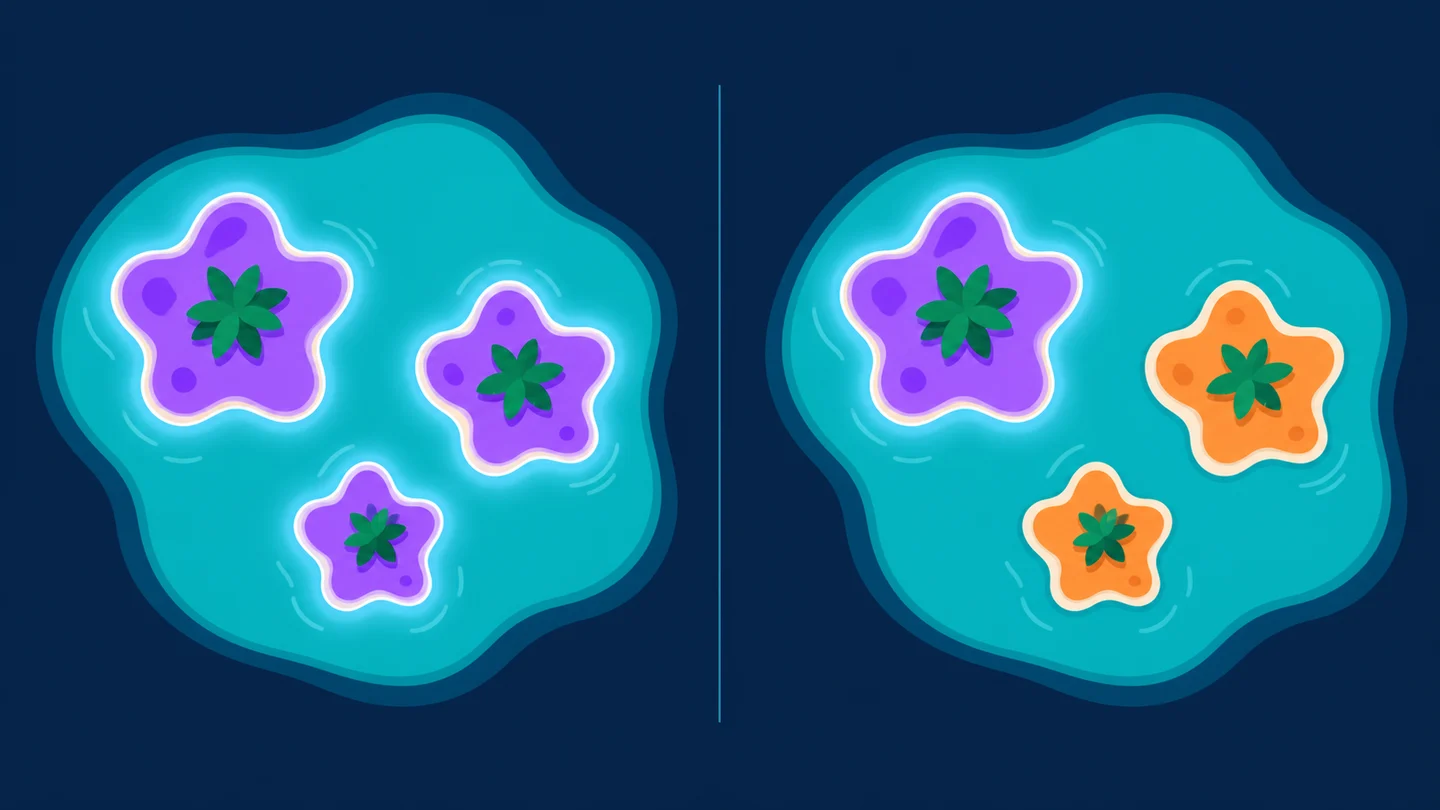
Choose the source, narrow the rule, inspect the mask, and only then commit the edit.
Upload or paste the file, choose Pick color, and click the source color in the canvas. For pixel art, a frequent palette swatch is often faster and more exact.
Use All matching pixels for a global palette swap, Inside a selection for a rectangular limit, or Connected area only when separate objects share the same color. Paint the cyan protection mask over details that must stay unchanged.
Switch to Similar colors only when edge shades or compression variations are missing. Increase tolerance gradually, review the affected count and pink mask, apply the color, then undo if the result reaches too far.
Answers based on how people search for image color replacers, PNG color changers, and pixel-art palette swaps.
Exact match compares the red, green, and blue values of each visible pixel with the source color. It is ideal for pixel art, flat icons, logos, and clean PNG assets where one palette entry should map to one new color.
Tolerance widens the acceptable RGB distance from the clicked source color. A low value includes very close shades; a high value can include highlights, shadows, anti-aliased edges, or unrelated colors. Raise it slowly while watching the pink mask.
All matching pixels searches the full image or selected box, even when matching pixels are separated. Connected area only uses your clicked seed and follows neighboring pixels that meet the same color rule. Choose it when identical colors appear on separate objects.
Yes. Pick the source color first, choose Inside a selection, select the Select area action, and drag a yellow box. Only matching pixels inside that box appear in the affected mask and change when you apply.
Yes. The tool changes RGB values only and keeps every pixel's existing alpha value. Fully transparent pixels are not matched, so a transparent background remains transparent in the downloaded PNG.
Yes. Pixel art and sprites usually have small, deliberate palettes and hard edges, so exact matching gives predictable palette swaps. Use the original palette row to select a common color without guessing its HEX value.
No. This is a color-conditional replacer, not an AI object editor. It changes pixels because they match a color rule, not because it understands the object. Use a selection, connected-area mode, or the protection brush to control shared colors.
Choose Protect, paint cyan over the logo detail, and return to Pick color. Protected pixels are removed from the affected mask even if they match the source color and tolerance.
No. The browser reads and edits the pixels locally with canvas, and the download is created on your device. Your image is not sent to this site for processing.
Pick the old color, choose the new color, and verify the affected-pixel mask before applying.
Use exact match for sprites and icons; add tolerance carefully for edge shades and simple illustrations.
Color replacement follows pixel values, not semantic objects. The original file is never overwritten.