Save a single moment
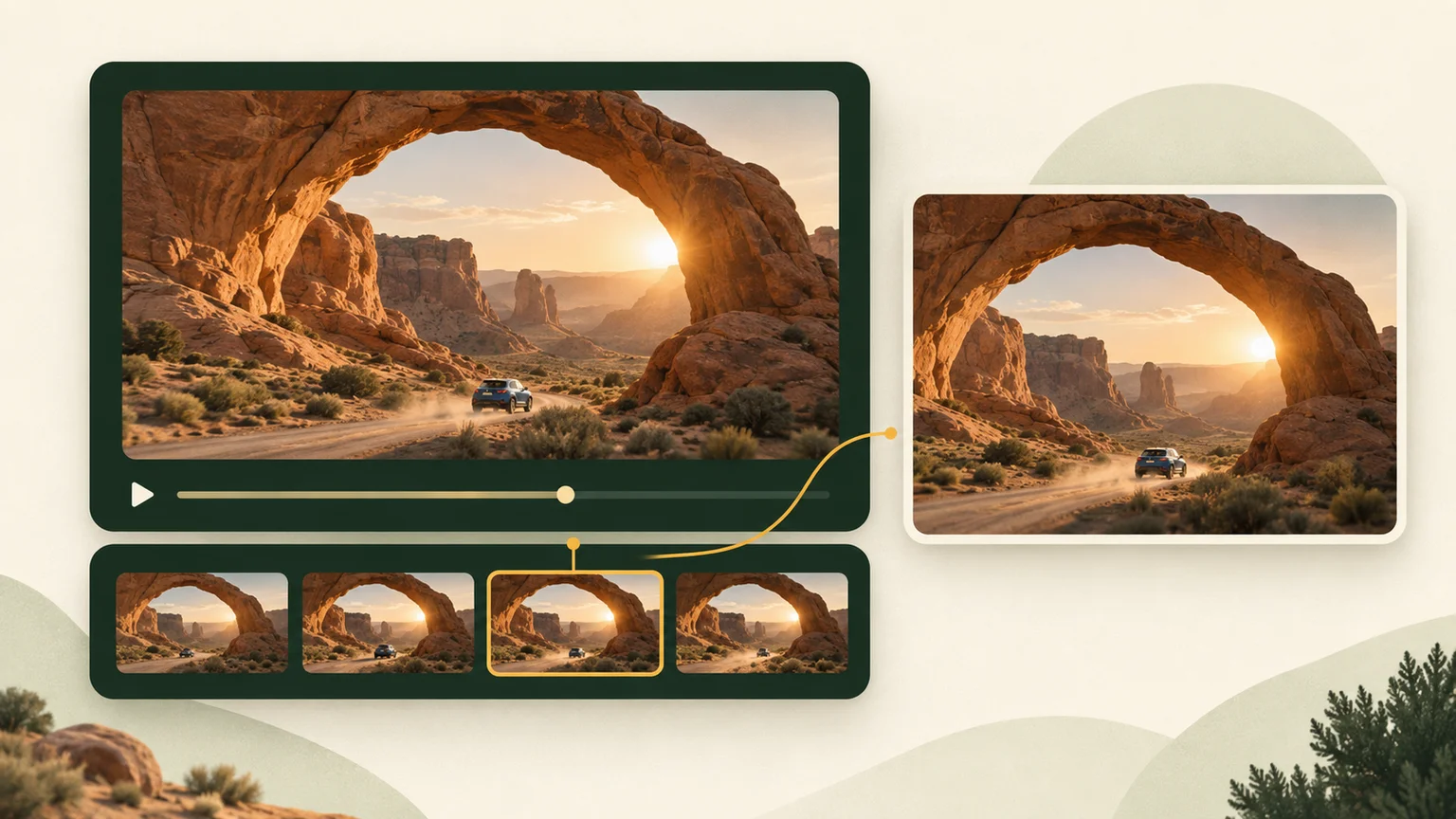
Pause the preview or enter a timestamp. Save frame from video without including player controls or the surrounding webpage.
Local video · selected stills · one workspace
Extract image from video without uploading your footage. Use this Video Frame Extractor to pause at a moment, collect interval samples, and turn your chosen video stills into downloadable pictures.
Local processing · PNG or JPEG · timestamped ZIP downloads
Use the Video Frame Extractor to open one local video, find a moment, and collect stills before choosing what to export.
Video decoding and image export happen on your device. Your video is not uploaded.
Choose a video to begin.
Your local video preview appears here
Time interval sampling is not an export of every frame. Up to 100 candidates, 128 MiB of encoded images, 16 million pixels per image, and 8192 px per side. The exact duration endpoint is excluded. Keep this tab visible while extracting.
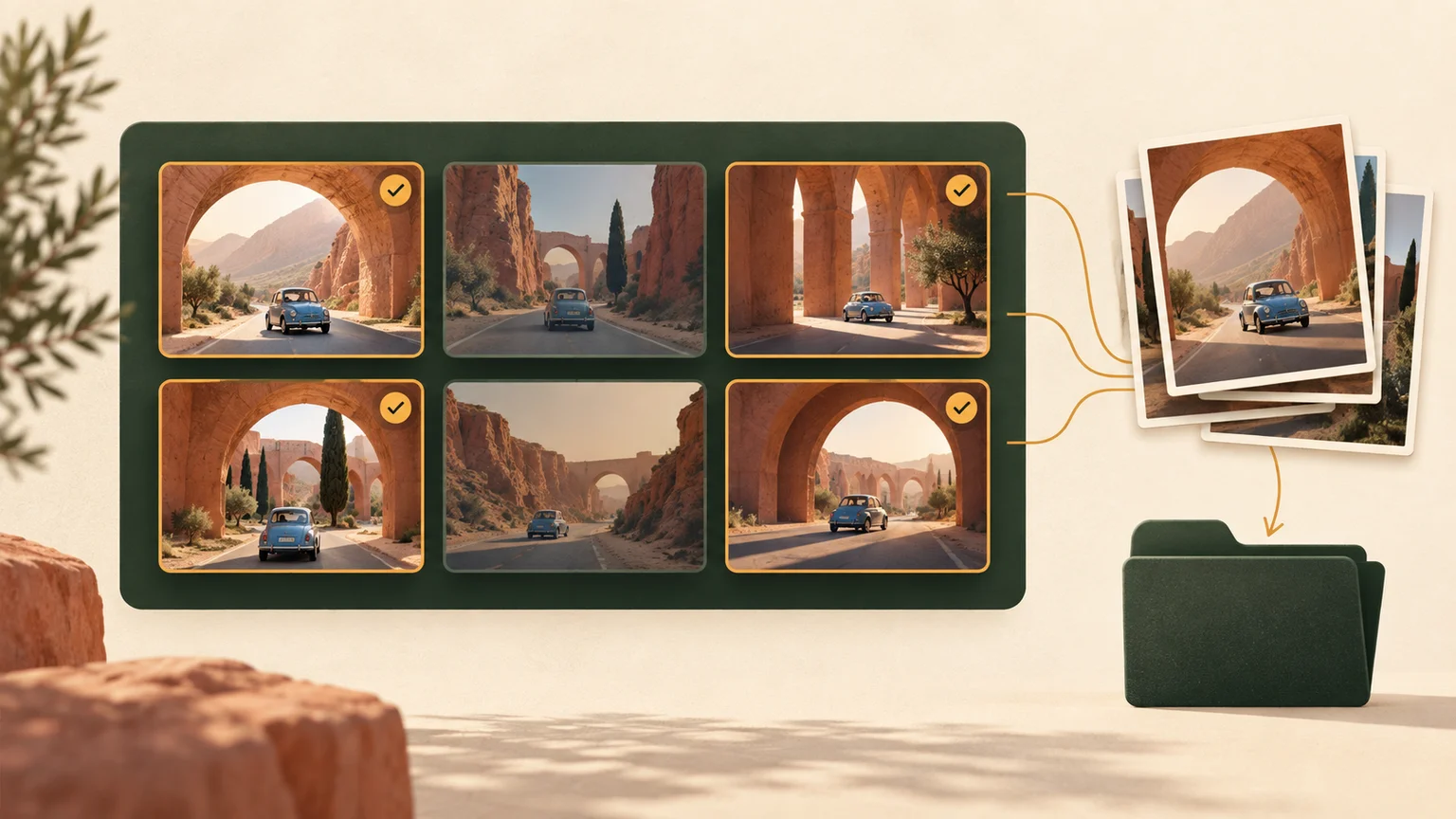
Review the pictures, open a larger preview, and uncheck unwanted moments. Repeated captures remain separate so you can decide which to keep.
Saved moments will appear here. Start with a manual capture or a short interval batch.
ZIP includes frames.json with requested time, captured time, time source, and dimensions. Approximate times are labeled. Tool transfers temporarily store selected images in this browser; transfers expire after 15 minutes; the destination applies its own limits.
A focused workspace for snapshots, interval samples, and reusable image assets.
Pause the preview or enter a timestamp. Save frame from video without including player controls or the surrounding webpage.
Set a start, end, and interval. Check the estimated count before running, and cancel while keeping completed images.
Compare candidate images, deselect blurry or repeated moments, and download individual files or a ZIP with a time manifest.
Find a cover image, illustrate a tutorial, or prepare a small sequence for another tool. Illustrations show the workflow concept.
In the Video Frame Extractor, start with a pause near the moment you want. Enter seconds or a clock time to refine the position, then inspect the saved image at a larger size. Choose original display dimensions when you need the full decoded picture, or a smaller maximum edge for lighter files. The export contains the video image itself; webpage overlays never become part of it.
Use the Video Frame Extractor candidate area to keep the moments you need. Send the selection directly to the existing image combiner for a visual overview, or to the sprite sheet tool for an atlas. Images keep their filenames and time labels. Large selections may need fewer pictures or smaller capture dimensions to fit the receiving tool.
Start with one picture to check quality before collecting a longer sequence.
Choose a file in the Video Frame Extractor and check its duration, displayed dimensions, and preview orientation. If decoding fails, read the reason and try a compatible browser or a converted local copy.
For one still, enter a time, click Go to time, and save. For a batch, choose the range and interval, check the estimate, then collect up to the available candidate limit.
Open larger previews and uncheck unwanted images. Download a single picture, package your selection with timestamps, or send selected images to the existing layout tools.
Answers about time selection, image quality, batch limits, and compatible video files.
Open a local file in the Video Frame Extractor, pause on the moment you want, and choose Save current frame. The still appears in the candidate area, where you can inspect it and download a PNG or JPEG. You can repeat this without leaving the page.
Yes. Enter a time in seconds, such as 12.5, or use 00:00:12.500, then click Go to time and save the current frame. Seeking selects a decoded picture near that position. Requested time and captured time are kept separately because they can differ.
Set a start time, end time, and interval. For example, 0 to 10 seconds at a 2-second interval requests 0, 2, 4, 6, 8, and 10 seconds when the video is longer than 10 seconds. The exact video endpoint is excluded. Review the estimate before collecting.
No. This Video Frame Extractor samples by time and supports manual snapshots; it does not enumerate every encoded frame. Browser seeking, video presentation callbacks, and display timing cannot guarantee an exhaustive sequence. Use a dedicated decoder workflow if you need every frame or frame-index accuracy.
Choose Original display size to use the browser-reported video dimensions, within the output limits. The default long edge is 1280 pixels and never upscales. The image comes from decoded video, not a screen capture. PNG avoids another lossy image encoding step but cannot restore detail missing from the video.
These names describe containers; the video codec inside must also be supported by your browser and operating system. The tool attempts actual decoding and reports loading, unsupported-source, or decoding failures. A damaged file or an audio-only track can also prevent image extraction. Try another browser or convert a local copy.
When fresh browser frame metadata is available, the Video Frame Extractor records its presentation time. Otherwise it labels the playback position as approximate, including an approx prefix in timestamped filenames. The ZIP manifest records both requested and captured times plus the time source; milliseconds do not imply frame-perfect precision.
Keep up to 100 candidate images and 128 MiB of encoded images in one collection. Each output is limited to 16 million pixels and 8192 pixels per side. The minimum interval is 0.1 seconds. Cancel stops further collection and retains completed pictures. Shorter ranges and smaller outputs use less memory.
Yes. Local video decoding, candidate selection, and downloads run in your browser without uploading the video or requiring an account. Opening a new video clears the candidates. Sending selected images to another tool uses temporary storage in the same browser; download a copy before leaving if you want to keep your work.
This version accepts local video files only. It does not fetch YouTube, social media, or remote video links. If you have a local copy you are allowed to use, open that file and collect its pictures in the same workspace.
First check whether the same moment is black in the video preview; intros and transitions can contain real black frames. Try a nearby time. Inspect portrait orientation and displayed proportions before a batch. Browser handling of rotation metadata and HDR color may vary; if preview and export disagree, try another browser or a standard SDR copy.
Send selected images to the image combiner for an overview or to the sprite sheet tool for a regular atlas. These transfers allow up to 32 million source pixels and 64 MiB in total, with 20 MiB per image. For animation editing, download the pictures and import them into the separate pixel art animation maker.
Open the Video Frame Extractor, save a test picture, and collect the moments that help explain your story.
Local files only. Time sampling, with no claim of exhaustive frame export.