Remove white background from image files
Click a white or near-white backdrop, raise tolerance only enough to include compression shades, and keep interior white details protected.
Logos and iconsSolid-color background remover
Use Make Color Transparent for pixel art, icons, logos, and simple illustrations with a flat background. Click the background color, inspect the removal mask, adjust tolerance, and confirm only when the preview is right.
Edge-connected removal is the safe default. Keep and erase brushes fix exceptions before a local transparent PNG export.
Upload an image and click its solid background. Pink shows what will become transparent; cyan shows pixels protected with the keep brush. Nothing is removed until you confirm the preview.
Pass the confirmed PNG to the crop editor, or open the Image Outline Generator to add a subject-shaped outer stroke.
The transparent result is exported as PNG because standard JPG has no alpha channel. This first version does not offer JPG export, so it never silently fills transparent pixels with black or white.
Click the image to choose the background color.
Then click the background color to preview every pixel that will become transparent before applying the edit.
Drop, choose, or paste a PNG, JPG, or static WebP. Image processing stays in this browser tab.
Upload an image, then click its solid background color.
Choose the color rule that matches the source instead of treating every background as an AI cutout problem.
Click a white or near-white backdrop, raise tolerance only enough to include compression shades, and keep interior white details protected.
Logos and iconsExport an alpha-enabled PNG before combining sprites, placing an icon on a colored card, or arranging assets on a page.
Transparent PNGUse this predictable rule to remove solid color background pixels. It does not claim to identify people, hair, glass, or a busy photographic scene.
Clear scopeThe useful difference is not a magic remove button—it is seeing the exact pixels, choosing the right scope, and checking the alpha result.
Click the flat backdrop, choose Pixel art edge treatment, and keep tolerance low. The removal mask stays aligned to the source pixel grid, so the exported sprite preserves crisp square edges instead of adding a soft halo.
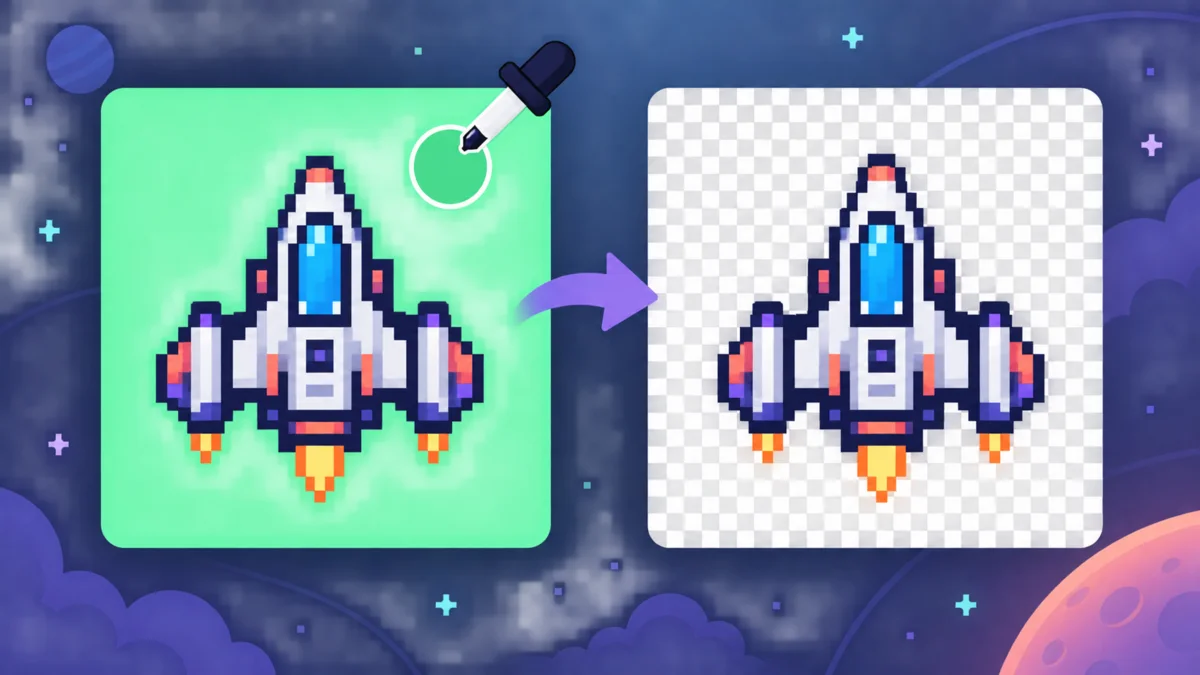
Edge-connected background is the default because a white eye, badge detail, or hole enclosed by the subject should not disappear just because it matches the backdrop. Switch to all matching pixels only when every occurrence of the selected color should be removed.

Sample the background, narrow the removal rule, and inspect the transparent result against contrasting colors.
Upload, drop, or paste the image, keep Pick color active, and click a representative background pixel. The pink preview appears immediately; no source pixel is changed yet.
Keep edge-connected mode when the same color appears inside the subject. Increase tolerance gradually for an off-white scan or JPG compression, then use the keep brush for false positives and the erase brush for leftover specks.
Confirm only after the mask is accurate. Switch the result among checkerboard, black, and white to reveal halos or missing pixels. Download PNG, or pass the result to the crop or annotation workflow.
Answers based on common searches for removing white and solid-color backgrounds, transparent PNG files, tolerance, and clean pixel-art edges.
Upload or paste the image, click the flat background color, and inspect the pink mask. Keep edge-connected mode for most assets, adjust tolerance slowly, correct mistakes with the keep and erase brushes, then confirm and download the transparent PNG.
Use edge-connected background mode. It removes white or near-white matches that can be reached from the outside edge while preserving enclosed white areas, such as eyes, lettering, holes, and highlights. Paint the keep mask over any remaining false positive.
Tolerance controls how different a pixel may be from the chosen color and still count as a match. Zero targets the exact RGB value. Higher values include nearby shades from anti-aliasing, scans, or compression, but can also reach subject colors, so watch the mask.
JPG compression often turns one visually white area into many slightly different near-white pixels, especially around sharp edges. Raise tolerance a little at a time until those pixels enter the mask. A clean PNG usually needs less tolerance.
Edge-connected mode starts from matching pixels along the image border and follows neighboring matches, protecting isolated same-color details inside the subject. All matching pixels removes every match in the full image, whether connected to the edge or not.
Yes. The source can be JPG, PNG, or static WebP. The tool creates alpha transparency and downloads a PNG. PNG supports a full alpha channel, while standard JPEG has no alpha channel and cannot store the transparent result.
The checkerboard is a viewing aid, not part of the file. It makes empty pixels visible. Switch to black and white too: contrasting backgrounds reveal pale halos, dark fringes, or small pieces that should have been kept.
Choose Illustration for ordinary flat artwork when a very light one-pixel cleanup can reduce a background halo. Choose Pixel art for sprites, low-resolution icons, and hard-edged graphics; it changes only the selected alpha values and keeps square edges crisp.
No. This is a solid-color background remover, not intelligent subject segmentation. Hair, glass, smoke, translucent objects, patterned scenes, and uneven photographic backgrounds need a subject-aware editor and careful manual masking.
No image file is uploaded for this edit. Decoding, color matching, brush corrections, transparency preview, PNG export, and handoff to another tool run in the current browser. The wider site still uses ads and analytics.
Click the background, review the exact removal mask, and protect enclosed details before making pixels transparent.
Export PNG for real alpha transparency; use the crop or annotation workflow after the clean asset is ready.
Designed for solid and near-solid backgrounds—not automatic cutouts of complex photos, hair, glass, or translucent subjects.