Redact before changing the ratio
Cover passwords, IDs, or private records first so only the safely redacted result is reframed.
Privacy firstPrivate browser image ratio tool
Use this image aspect ratio changer to convert a photo to 1:1, 16:9, 9:16, 4:5, or a custom ratio. Crop the frame or keep the whole image with padding—the choice stays visible before you download.
Your image is processed locally in the editor. The site still uses ads and analytics.
Upload, drag, paste, or choose a photo on mobile. The image aspect ratio changer always renders the download from your original file, not from the smaller preview.
Choose crop to fill when edges can be removed, or add padding to keep the complete image without stretching.
Finish privacy or pixel-art work first, then use this ratio tool to prepare the final shape and dimensions.
Cover passwords, IDs, or private records first so only the safely redacted result is reframed.
Privacy firstMask one face, plate, or username before using the ratio editor for a square or vertical layout.
Selected areaMake a pixel-art version, then add padding with hard pixel edges so an enlarged export stays crisp.
Crisp scalingChanging shape requires a tradeoff: crop the edges, or preserve every pixel and add background space.
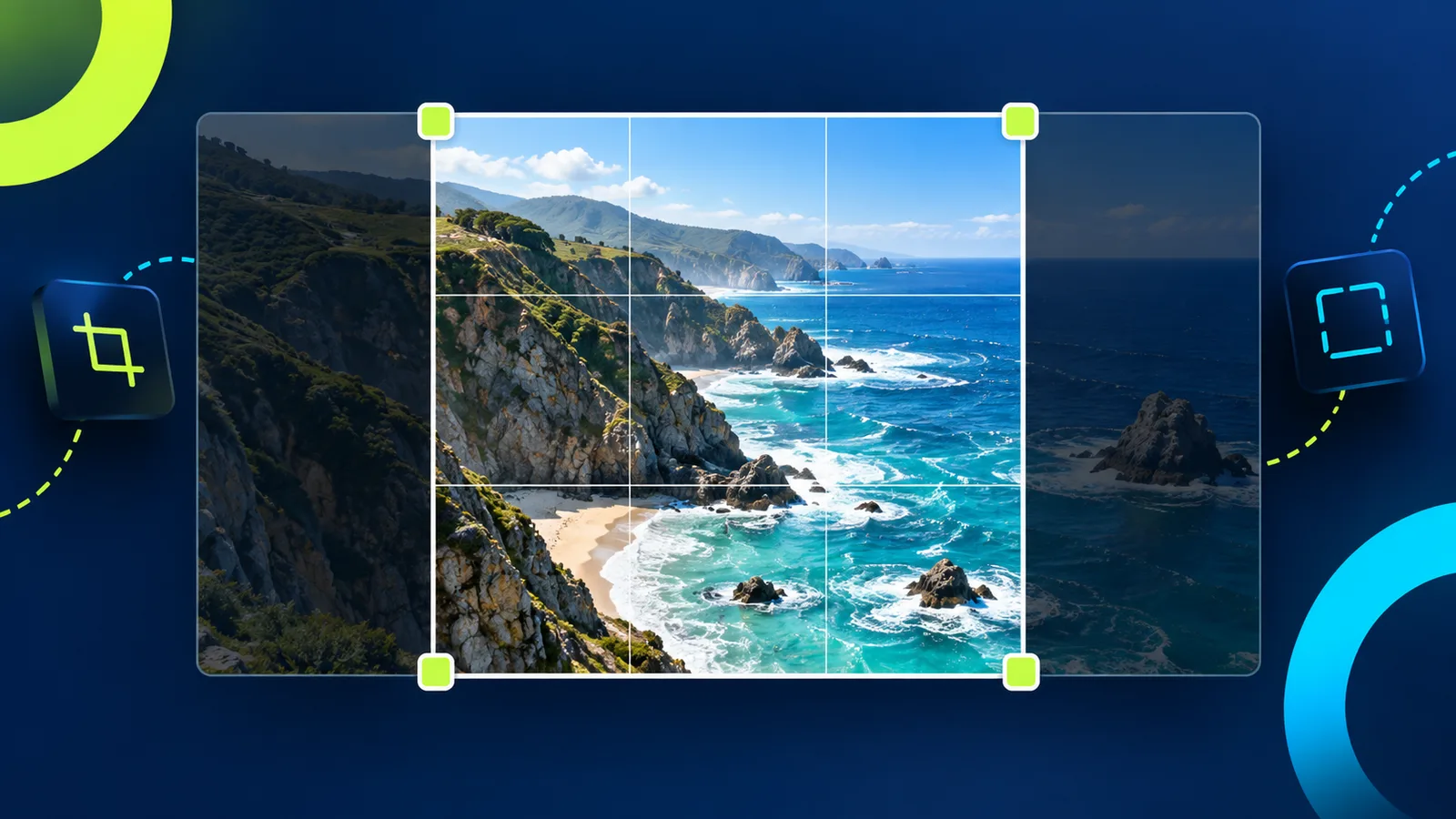
Crop to fill uses the largest matching frame. Drag the crop box, resize it from the corners, use the rule-of-thirds grid, or press the arrow keys for precise placement. The dimmed area will not appear in the download.
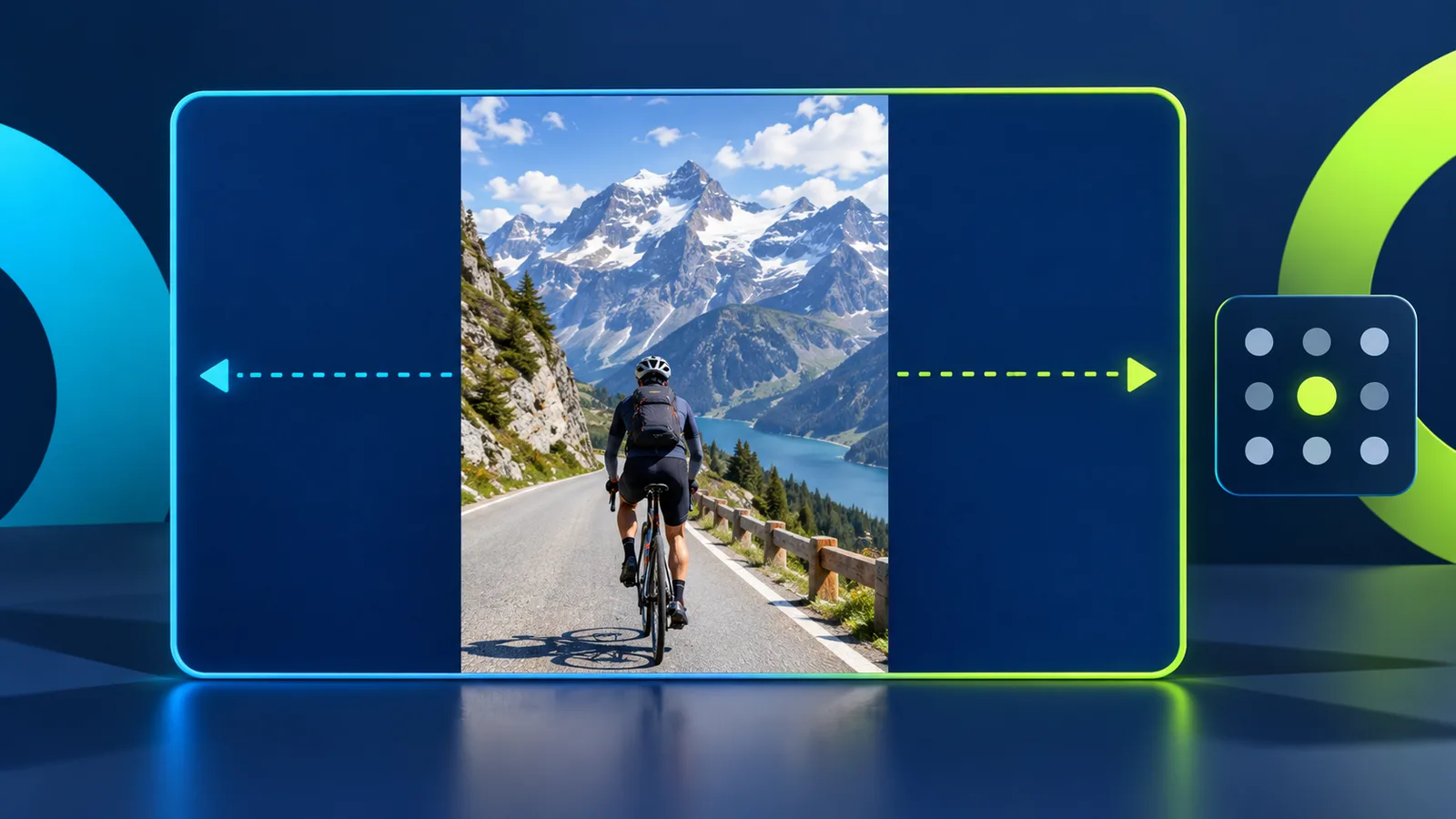
Keep full image mode expands the canvas with white, black, transparent, or custom-color padding. Choose any of nine alignments to place the intact photo without stretching people, text, or objects.
Set the ratio first, decide what stays, then choose the pixel dimensions for download.
Choose, drop, or paste a JPG, PNG, or static WebP. The image aspect ratio changer reads its original dimensions, ratio, and file size without uploading the file for processing.
Use crop to fill when edge content can be removed. Use keep full image when nothing may be cut off and a border or transparent area is acceptable.
Keep the current result size or enter a width or height. The other side is calculated from the aspect ratio and rounded to a real whole-pixel dimension.
Practical answers to common searches about cropping, padding, pixels, and image privacy.
Choose Keep full image, add background in the image aspect ratio changer. It fits the entire photo inside the new ratio and fills the unused canvas with white, black, transparent, or a custom color. No original content is cut off or stretched.
Yes. Both crop and padding modes preserve the proportions of the content. Crop removes edge pixels; padding keeps the complete image and adds space. Directly forcing both width and height would distort people, text, and shapes, so this tool does not make stretch the default.
Aspect ratio describes shape, such as 16:9 or 1:1. Pixel size describes resolution, such as 1600 × 900. Two files can share a 16:9 ratio while having very different pixel dimensions and levels of detail.
Borders appear only in Keep full image mode when the source and target shapes differ. That space is the honest way to change photo ratio without cropping or stretching. Switch to Crop to fill if you prefer an edge-to-edge result.
Yes. Choose 1:1 and Keep full image, then pick a padding color or transparent background. A landscape photo receives space above and below; a portrait photo receives space on the sides.
No. The tool can export more pixels, but enlarging cannot recreate detail that was not in the source. It warns when custom dimensions upscale the crop or full image because the result may look softer.
No image file is uploaded to a server for editing. Preview and export use browser canvas in the current session. The wider website still uses ads and analytics, so the privacy claim is about image processing rather than the whole site being offline.
Choose PNG for screenshots, text, pixel art, or transparent padding. Choose JPG for photos when a smaller file is useful, then adjust quality. JPG cannot store transparency, so the image aspect ratio changer asks for a solid background before a JPG download.
Use the image aspect ratio changer to crop for an edge-to-edge frame or add padding to keep the entire image.
Preview the exact ratio, pixel dimensions, method, and format before downloading.
No account, no watermark, and no image upload for processing.