Explain a screenshot
Point to a control, highlight a detail, and number a sequence. Annotate image online to make bug reports and tutorials easier to follow.
ScreenshotsScreenshot annotation + image measurement tool
Annotate image online with arrows, text, highlights, and numbered steps. Switch to Measure for pixel distances, calibrated lengths, angles, and rectangular areas, then export the explanation with the image.
Paste, drop, or choose a JPG, PNG, or static WebP. Edit in your browser and download a full-size PNG.
Start with arrows and notes, or choose Measure and drag a distance line. Lengths stay in pixels until you draw a reference and confirm its known length and unit.
Not calibrated · lengths in px, areas in px²
Zoom keeps measurements unchanged. Replacing the image resets calibration. Recheck the reference after cropping, resizing, perspective changes, or stitching; exported labels become fixed pixels.
Paste or choose a screenshot, scan, or flat drawing. Add annotations or measure distances directly on the image.
Choose the workflow that matches the question your image needs to answer.
Point to a control, highlight a detail, and number a sequence. Annotate image online to make bug reports and tutorials easier to follow.
ScreenshotsRead pixel distances immediately. Calibrate against a known reference to estimate lengths and rectangular areas in a scan or suitable flat drawing.
Reference scaleThis editor calculates image lengths from a reference. The print tool instead places the image on paper at your chosen physical size; it does not verify that size from the photo.
Paper outputKeep explanatory marks and measurements together, so readers can see what was measured and why.
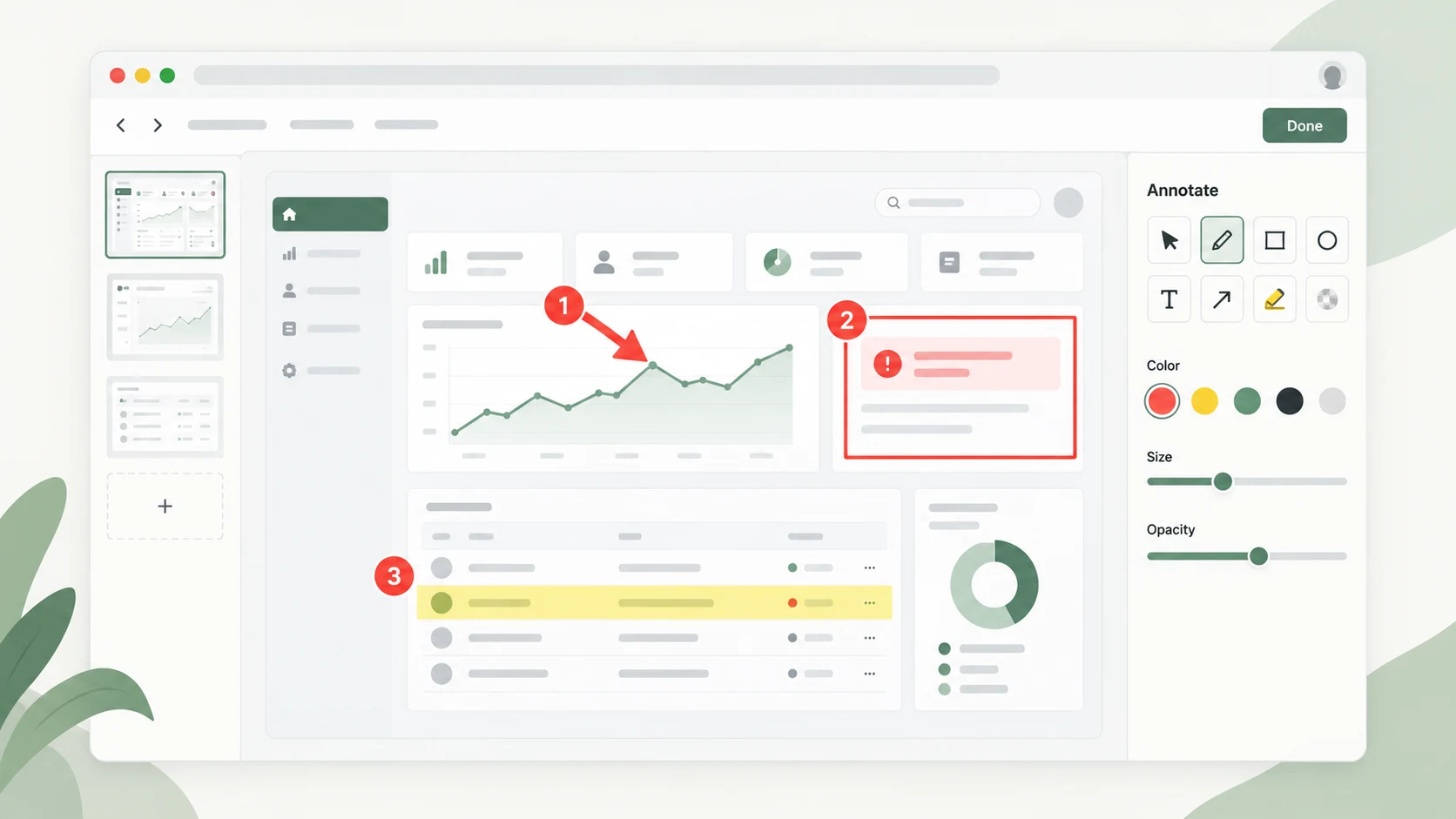
Use arrows for direction, rectangles for boundaries, highlights for emphasis, and numbers for a sequence. Add short text notes to explain the change. Each mark stays editable until you export.
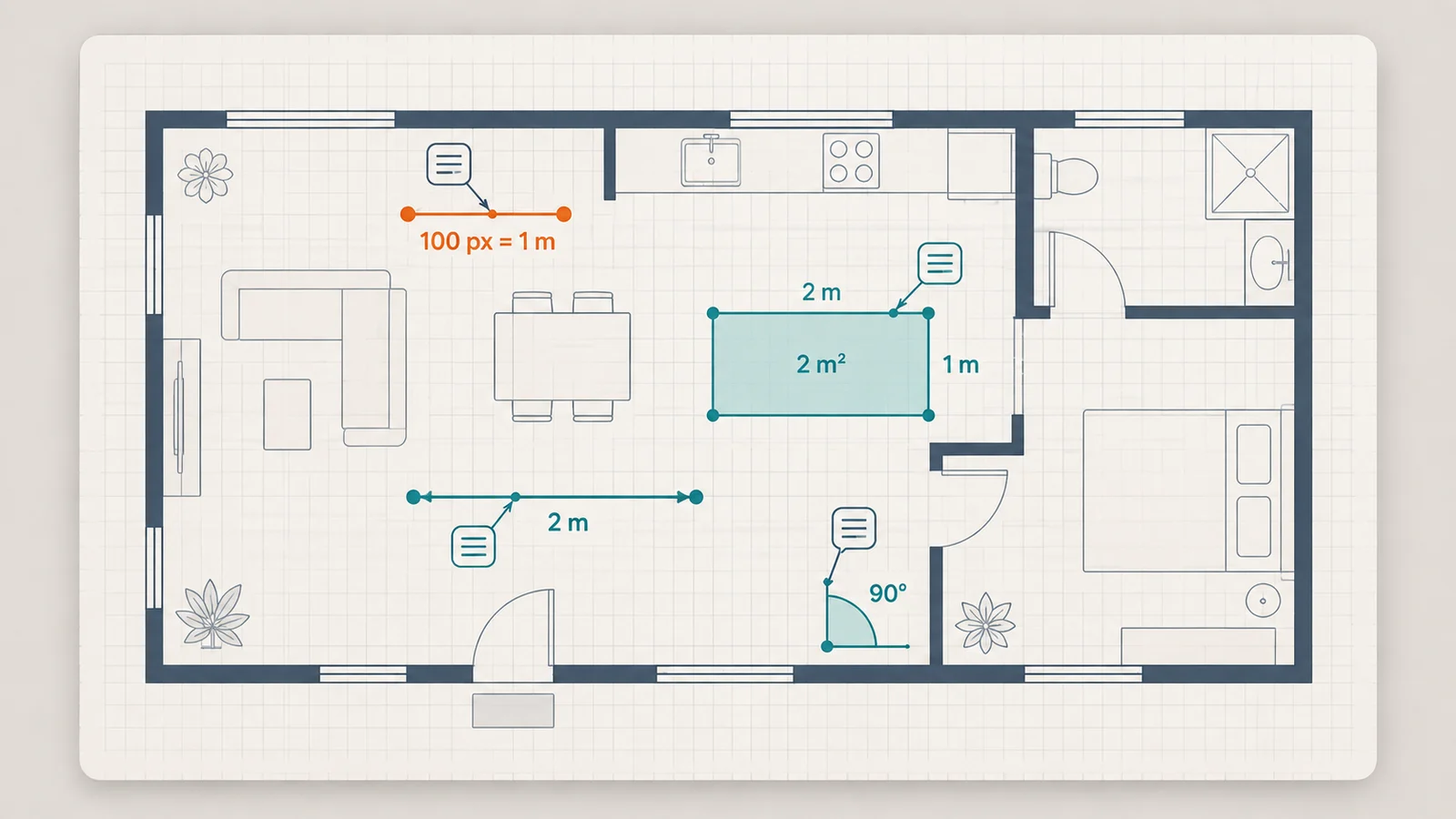
A known 10 cm segment spanning 200 pixels sets 20 px per cm. A 350-pixel line then represents 17.5 cm, and a 200 × 100 pixel rectangle represents 50 cm². Use this image measurement tool on the same undistorted plane. The illustration is explanatory, not a scale reference.
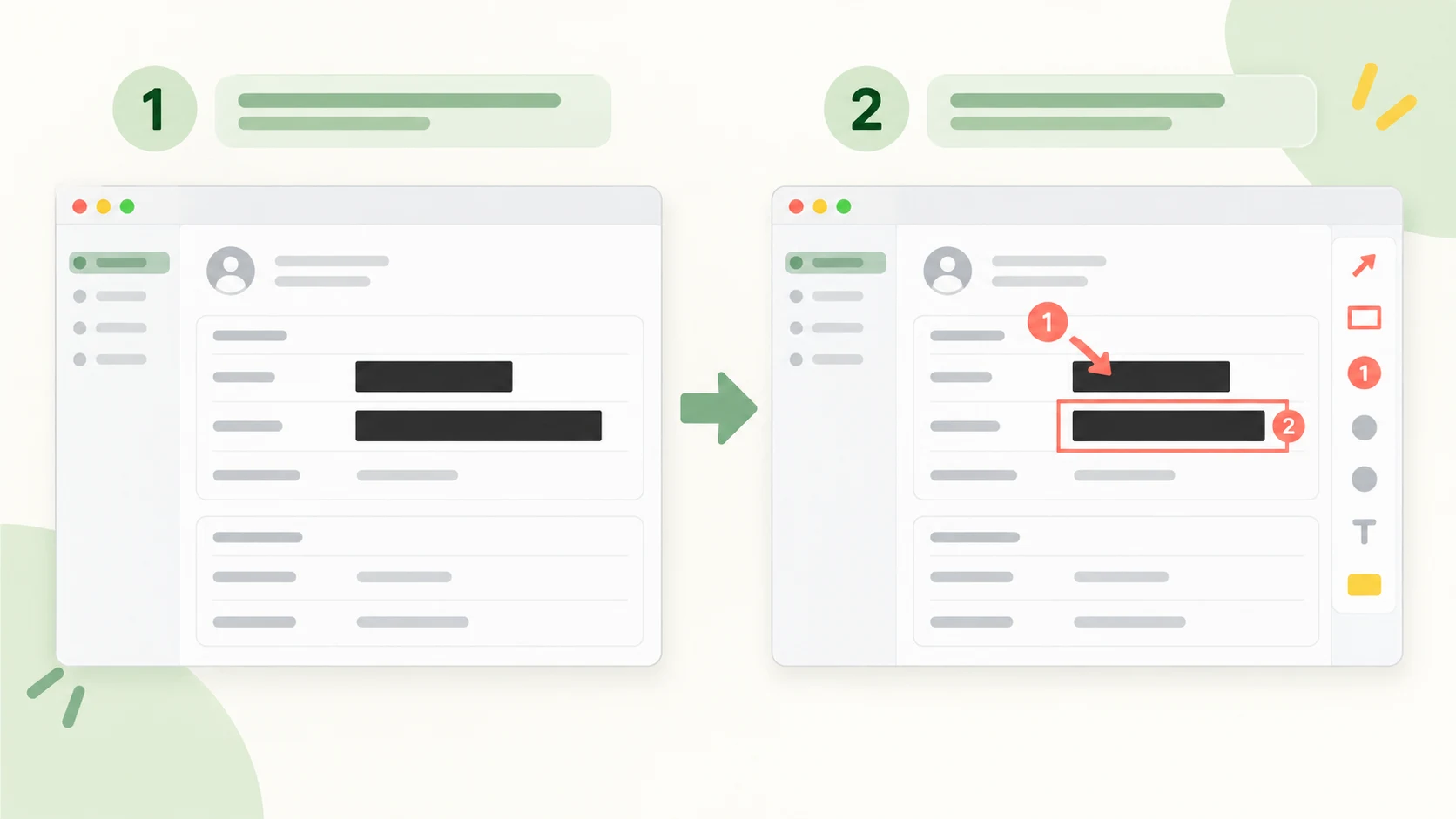
A highlight remains transparent. Cover sensitive information with a fully opaque redaction, flatten the result, then annotate image online using that safe copy. Add measurements only after confirming a reference in the image you are editing.
Work from the original image, establish a reference when needed, and review the exported labels.
Choose, paste, or drop an image. Add arrows, text, boxes, highlights, or numbered steps in Annotate mode. For a scan, choose a clear, high-resolution source so endpoints are easier to place.
In Measure mode, drag a distance or rectangular area, or click three points for an angle. For physical lengths, draw Reference line, enter its known length and unit, then confirm. Existing distance and area labels update automatically.
Use Select to move an object, adjust endpoints, or drag a result label clear of a detail. Undo and redo include scale changes. When you annotate image online, preview zoom preserves the numbers; PNG export flattens completed labels at the source resolution.
Answers about screenshot markup, image measurements, reference scales, export, and privacy.
Paste, drop, or choose a JPG, PNG, or static WebP. Use arrows, text, rectangles, highlights, and numbered steps to explain the image. Select a mark to move or restyle it; download the completed annotations as a PNG. No account is required.
Choose Arrow and drag toward the detail. For Text, type a note, set its font size, wrap width, and optional background, then click the image. Use Select to edit text or drag either arrow endpoint. Short notes usually keep the underlying screenshot easier to read.
Switch to Measure, choose Distance, and drag from the first point to the second. The label shows the straight-line distance in source pixels, including diagonal lines. No reference is needed for pixels. Select the line and drag either endpoint to refine its placement.
Draw Reference line over a segment whose real length you know, enter that length, choose its unit, and confirm the scale. Length equals measured pixels × known length ÷ reference pixels. Units include mm, cm, m, in, ft, and µm. All distance and area labels use the confirmed scale.
A single scale is suitable for a scan, flat drawing, or front-facing planar image with a known reference in the same plane. Strong perspective, lens distortion, or different object depths can invalidate that scale. This tool does not perform perspective correction or infer unknown real dimensions. More decimal places do not make a photo more accurate.
Choose Angle and click a point on the first arm, the vertex, and a point on the second arm. The second point is the vertex; the result is the smaller 0–180° angle in the image plane. Angles need no length calibration. Select the angle to adjust any of its three points.
Choose Rectangle area and drag between opposite corners. The tool measures an axis-aligned rectangle in px², or in squared units after calibration. For example, at 20 px per cm, a 200 × 100 pixel rectangle is 50 cm². It does not trace polygons, tilted rectangles, circles, or irregular boundaries.
Yes. While you annotate image online, switch to Select, then drag the numeric label to a clear spot. Dragging the label only changes its position. Circular handles edit endpoints, and dragging the line or region moves the whole object. Color, stroke, and measurement label size remain editable.
Preview zoom only changes display size, so measurements stay the same. Moving a reference endpoint or changing its length input or unit requires confirmation again; until then, lengths and areas use pixels. Replacing the image clears the scale. After crop, resize, perspective edits, or stitching, check the reference again; old exported numbers are fixed pixels.
Yes. Download PNG combines the original image with completed annotations, measurement lines, angle arcs, numbers, and notes at the source pixel dimensions. Unfinished drafts and selection handles are excluded. The resulting PNG has no editable layers or reusable calibration, so keep editing in the current tab until you are satisfied.
Measurement calculates a length from a known reference inside the picture. Printing to scale arranges an image on paper at a length you specify. Use the separate print tool when you need a paper template or a chosen output size; entering a print size does not establish the real dimensions of an unknown object.
Image editing, measurement calculations, undo history, and PNG export run locally in your browser. The image is not uploaded for processing. The wider website uses ads and analytics. Hide sensitive information with opaque redaction before sharing; a translucent highlight is only an emphasis mark.
Add clear arrows and notes, measure the detail you need, and keep every completed mark editable until export.
Use pixels immediately, or confirm a known reference for physical units. Review the result and save a full-size PNG.
Browser-based image processing, no watermark, and no account required.