Make a color transparent
Remove a plain background while protecting important parts of the subject.
PNG & JPG → editable SVG paths
Turn logos, drawings, and pixel art into editable SVG paths with this Image Vectorizer. Choose a tracing preset, simplify colors, and compare the result before downloading. Image processing runs in your browser.
Real SVG paths · Three presets · Local image processing · Free download
Start with a clear logo, flat illustration, or small sprite. Drag the tracing sliders to see the preview update automatically.
This release exports vector artwork. A future stencil maker will add keep/cut areas, editable bridges, island detection, and connection checks. Your vector settings and result stay available when you return.
The preview updates as you drag. More detail keeps short contours; smoothing adjusts curves; simplification reduces line segments. Inspect small holes and thin strokes.
Reuse up to 32 colors saved by Color Palette Extractor. Available in color and pixel presets.
These tools receive your image and offer a return button. Tracing settings are saved in this tab.
Your vector preview appears here
Choose an image or try the sample to explore paths, colors, and square pixel edges.
Choose an image to begin.
Color and black-and-white tracing use a working image up to 1,024 px per side. Pixel art keeps the original grid up to 1,048,576 pixels and 2,048 px per side. Alpha below 50% becomes transparent; other pixels become opaque.
The Image Vectorizer processes the image locally. Preview backgrounds are never added to the SVG. Site ads and analytics may still make network requests.
Use the existing image tools for focused preparation before tracing.
Remove a plain background while protecting important parts of the subject.
Build a small palette, then apply those colors when converting image to SVG.
Correct a distracting color before the Image Vectorizer groups the shapes.
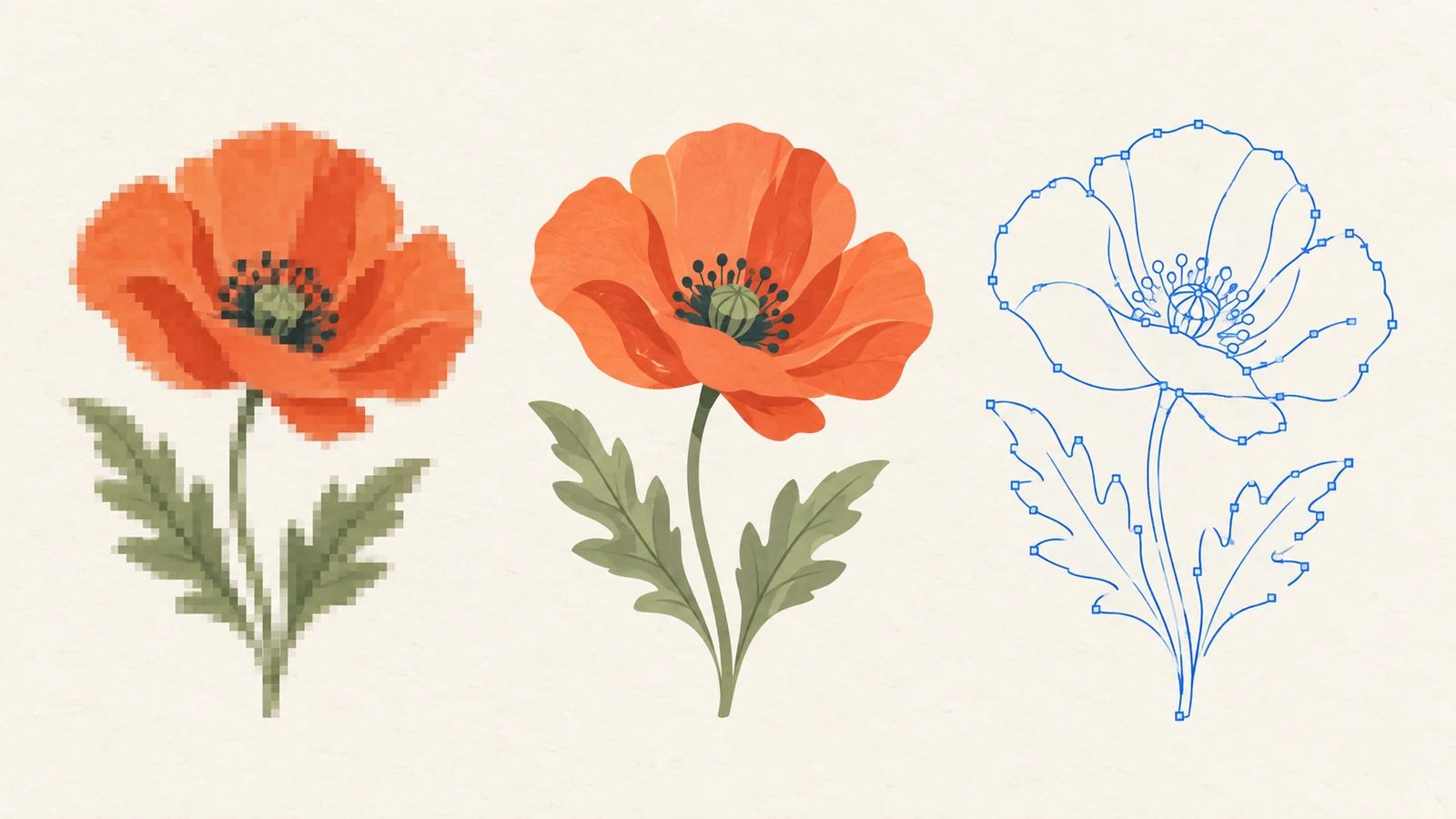
Explanatory illustrations show the workflow; your own result depends on the source image and tracing settings.
Black-and-white tracing suits ink drawings. Limited color tracing suits flat illustrations. Pixel tracing follows the original square grid. Compare the source, the filled result, and the path outlines to check where detail changes. A photograph becomes simplified artwork; tracing cannot reconstruct missing source detail.
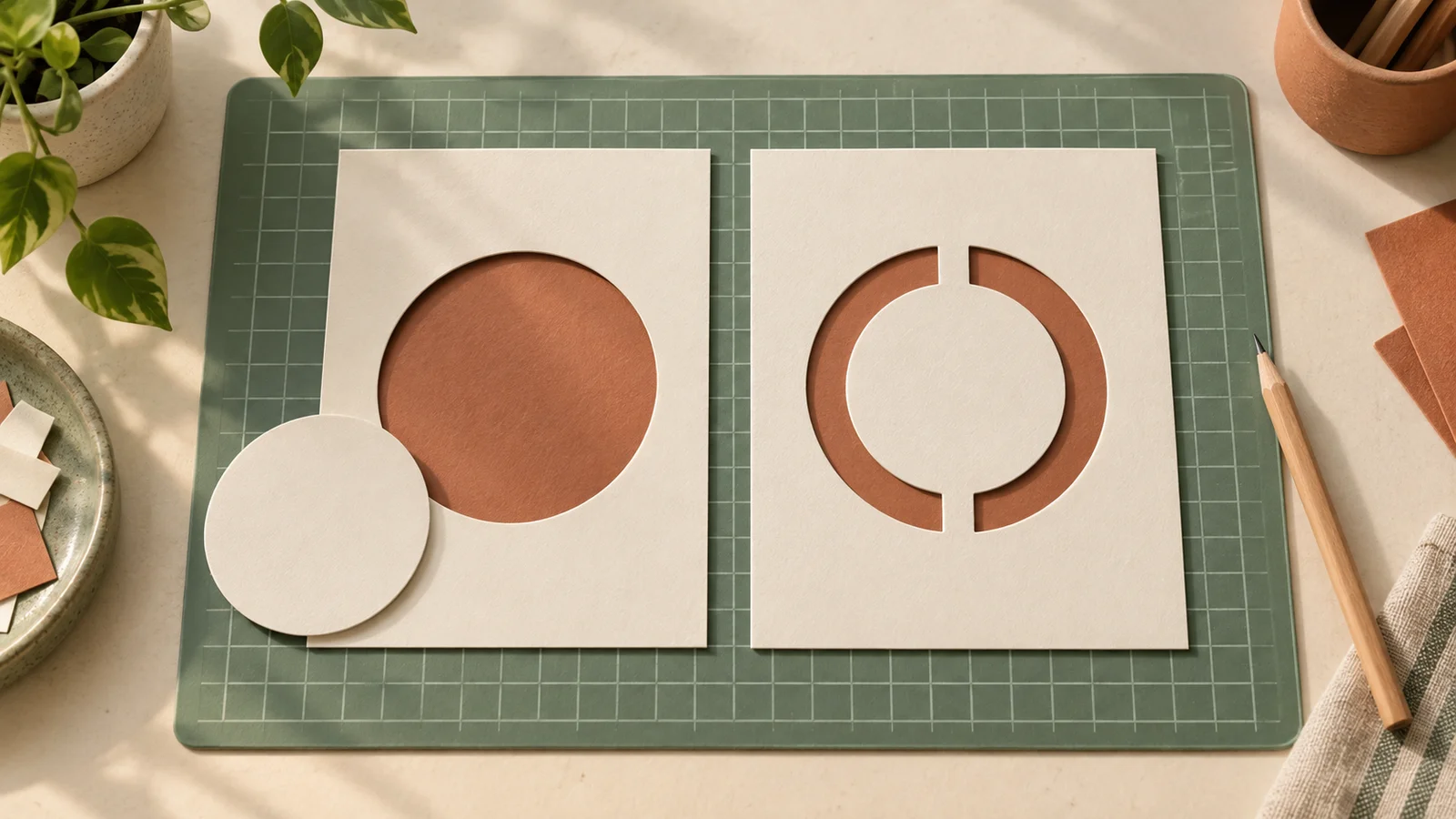
A normal SVG can contain an isolated center, such as the inside of an O. A cut stencil needs bridges to hold that center in place. Single-layer stencil editing is planned for this page, with separate controls for retained material, cutouts, and bridge width. The current Image Vectorizer does not check structural connections or certify cutting files.
Adjust the sliders, compare the live preview, then export.
Choose PNG, JPG, or WebP. High contrast and flat colors are easier to trace than noise, blur, and shadows.
Choose black and white, limited color, or pixel art. Adjust detail and simplification in the Image Vectorizer; the preview updates automatically.
Compare outlines and the original. Check color count, contours, and file size. Download real SVG paths for further editing.
Practical answers about image to SVG conversion and the planned stencil workflow.
Open the Image Vectorizer, choose a PNG, JPG, or WebP, and select a preset. The preview updates automatically as you drag the sliders. Inspect the filled result and path outlines before downloading.
Yes. The file contains traced path elements, including closed contours and inner holes. It does not embed the source bitmap in an SVG wrapper. You can edit the paths in an SVG editor after downloading.
Yes. Pixels with alpha below 50% are omitted, while the rest become opaque shapes. Partial transparency, glows, and soft shadows are simplified. If edge details disappear, clean the background in the linked tool and return with the processed image.
Use black and white for monochrome artwork and limited color for a flat colored logo. Start with a small palette, then raise detail only if thin strokes or small holes disappear. A higher-resolution original can help when the source is blurry.
Yes. The pixel preset traces integer grid boundaries without curve fitting or automatic rounding. Adjacent areas of the same color share compound paths. Start from the original sprite; resizing a screenshot may change its pixel grid.
Every contour needs coordinates. A textured photo can create thousands of shapes, so its SVG may be larger than a compressed bitmap. Reduce the number of colors and detail, increase path simplification, or keep the photo as a raster image.
Short contours can be removed by lower detail retention, and aggressive curve fitting can change tight corners. Increase detail, lower smoothing and simplification, then compare again. In black-and-white mode, also adjust the threshold to recover faint strokes.
Yes. Save colors in Color Palette Extractor, return to this image, and enable Use saved palette in the color or pixel preset. The saved colors replace the automatic color limit. Background cleaning and color replacement use their existing editors.
No. The current release provides vectorization only. A stencil maker also needs to check retained islands, bridges, closed paths, and overlaps. Single-layer stencil mode is planned; cutting references and connection reports are not available in this release.
Cutting out the complete ring leaves the middle as a loose island. Bridges connect it to the surrounding sheet. Width depends on the material, final size, cutting method, and intended use; one bridge width cannot suit every project.
After generating a result, choose Print at actual size to send a rendered PNG to the existing print tool. Set the physical dimensions there. Keep the SVG download for vector editing; the printing handoff is a raster reference.
The tracing preview and SVG download are free. Image decoding and vectorization run locally in your browser, including in a background worker. Advertising and analytics on the site are separate from image processing.
Use the Image Vectorizer to find a practical balance between clean shapes and manageable files.
SVG export available now. Single-layer stencil editing is planned.