Auto crop image whitespace
Remove transparent padding around icons, stickers, logos, and pixel art without drawing a manual rectangle.
Content boundsAutomatic empty-edge remover
Use Trim Image to find the useful pixel bounds automatically, remove transparent or solid-color borders, and keep an optional safe margin without guessing a crop box.
One image at a time, processed locally in your browser and exported as PNG.
Upload, paste, or drop one PNG, JPG, or WebP. The suggested box updates as you change border mode, threshold, safe margin, or individual sides.
Your source image stays on this device. Pixel analysis, preview, cropping, and PNG export happen in the browser.
Crop preview
Trim Image will propose a crop box and report exactly how many pixels can be removed from every side.
You can also drop a file here or paste an image from your clipboard.
Choose an image to generate a trim suggestion.
Empty-border removal follows pixel content; composition and aspect-ratio tools solve different problems.
Remove transparent padding around icons, stickers, logos, and pixel art without drawing a manual rectangle.
Content boundsUse the ratio changer when the goal is 1:1, 4:3, 16:9, or another layout rather than empty-edge removal.
CompositionIf a busy background surrounds the subject, remove that color before finding the new transparent bounds.
Background cleanupThe preview makes the boundary visible before any download is created.
Start with a low alpha threshold so a faint shadow or semi-transparent antialiasing stays inside the crop. Increase it only when the translucent edge is genuinely unwanted.
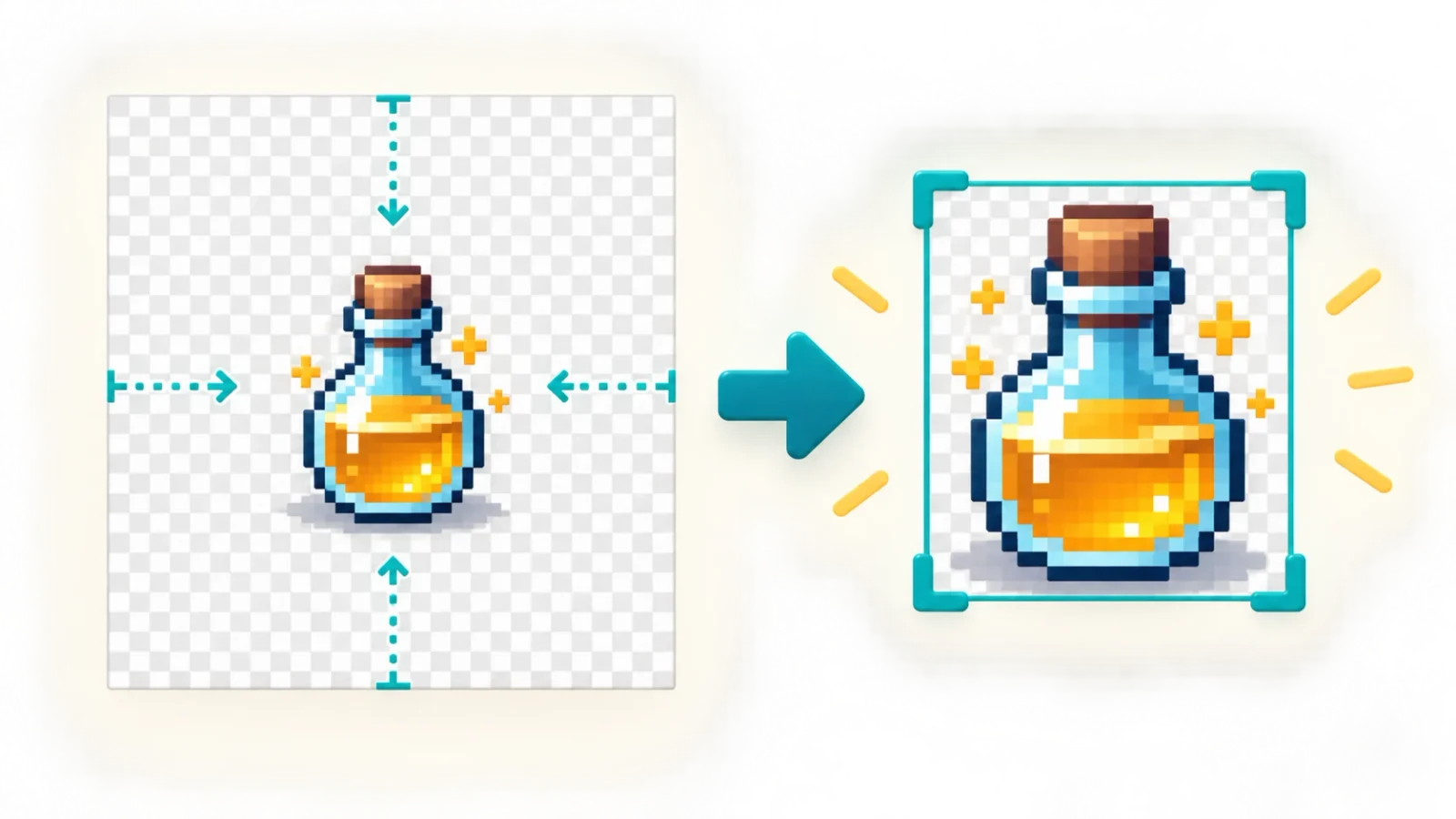
Use white-border mode for clean exports and scanned graphics. Add a few pixels of margin when an icon, shadow, or product should not touch the new canvas edge.
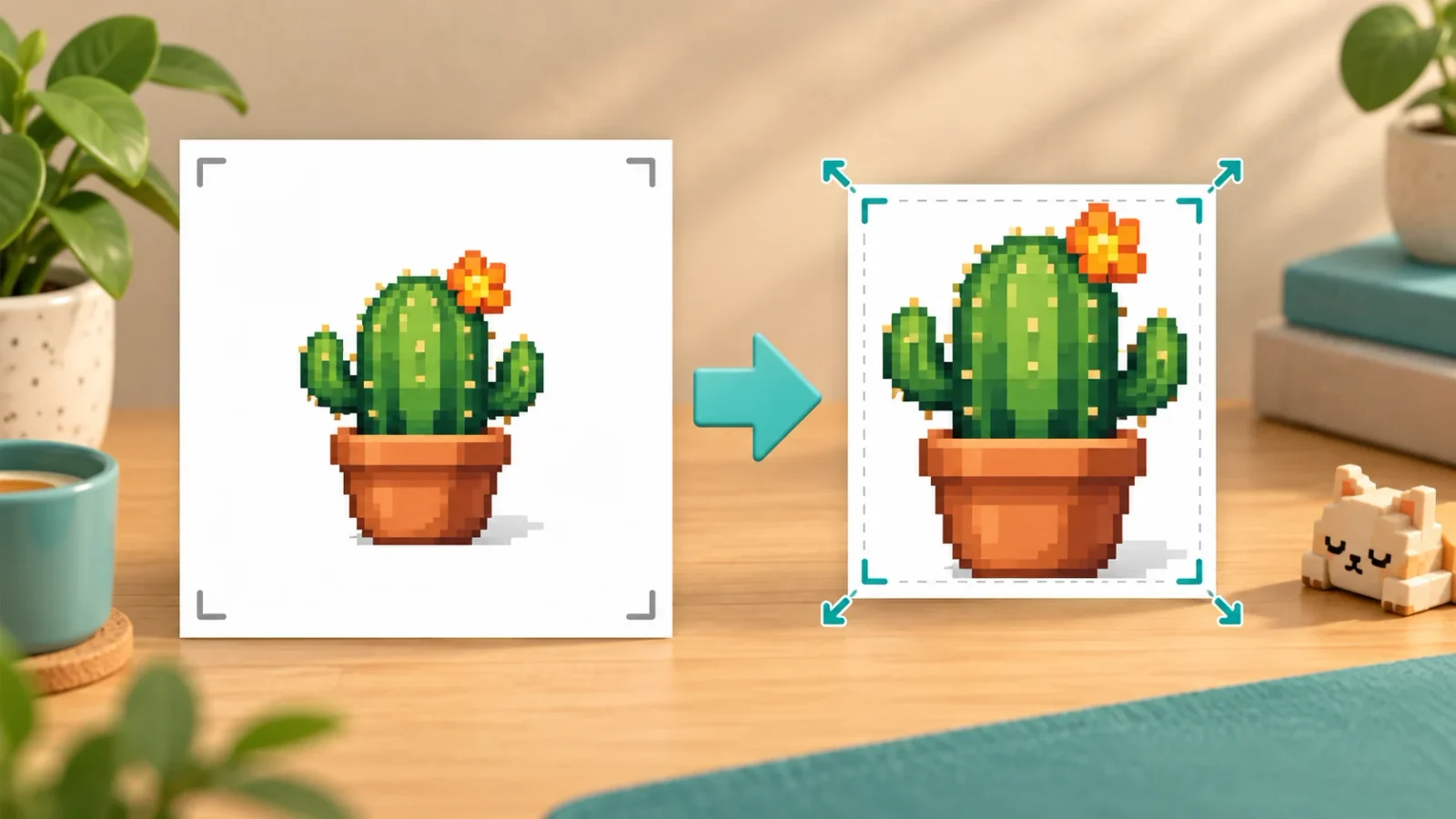
A quick three-step check keeps important pixels inside the result.
Choose transparent, white, or custom-background detection. The teal rectangle marks the proposed content boundary on the original canvas.
Lower the threshold if shadows disappear. Disable a side when its existing spacing matters, and add margin when the subject needs breathing room.
A threshold is not object recognition: isolated dust, noise, or one non-background corner pixel can expand the detected boundary.
Compare the trimmed preview with the original, confirm the four pixel counts and final dimensions, then download a PNG that preserves transparent pixels.
The tool does not resample the kept pixels, so trimming changes canvas dimensions rather than image detail.
Practical answers about transparent borders, white space, thresholds, privacy, and aligned assets.
Upload a PNG or WebP, keep Transparent edges selected, inspect the teal suggestion, then open the trimmed preview. A low threshold removes fully transparent padding while keeping most faint alpha details.
It sets the maximum alpha treated as empty. At a low value, semi-transparent shadows count as content; at a higher value, more translucent pixels can be excluded. Always compare both previews before export.
Choose White border mode. Exact white is removed at zero tolerance; raising the color threshold can catch near-white JPEG compression, scan noise, or uneven paper, but an aggressive setting may also cut pale content.
Yes. Select Custom background, choose the border color, and tune the color threshold. This crops the canvas to pixels that differ from that background; it does not erase the background inside the kept rectangle.
A shadow, compression artifact, scan speck, or stray pixel may count as content. Check the original view, choose the correct mode, and adjust the threshold gradually. The detector keeps every matching content pixel inside one rectangular bound.
The tool reports that no visible content was found and does not create a confusing 1 × 1 output. Lower the alpha threshold only if the file contains very faint pixels that you intentionally want to preserve.
No kept pixel is resized or resampled. Only outer rows and columns are removed, and the result is encoded as PNG. The width and height change, but the retained artwork stays at its original pixel scale.
Yes. Trim Image follows detected content and removes empty edges. An aspect-ratio crop follows a requested shape such as square or 16:9 and may intentionally cut content or add padding.
Do not independently tighten frames that must share an origin. Keep a uniform canvas or record each crop's x and y offset, then restore those offsets during playback or sprite-sheet packing. This first version handles one still image at a time.
No. The browser reads the file, detects pixels, renders previews, and creates the PNG locally. Nothing in this workflow needs to send your source image to a server.
Find transparent, white, or custom-color bounds and inspect every removed edge.
Keep a safe margin, restore the original view at any time, and export a local PNG.
Single-image trimming is available now; aligned frame sets need a shared canvas or stored offsets.