Annotate the cleaned page
Download or pass the corrected page to the annotation tool when you need arrows, labels, highlights, or callouts.
Next stepLocal OCR and document cleanup
Use Image to Text for a clean screenshot, or straighten and brighten a photographed page before you extract text from the image. Edit the OCR result beside the source instead of trusting an unchecked transcript.
Image editing and OCR run locally in this browser tab. OCR language files load only when you start recognition.
Upload, drop, or paste one image. Switch between text extraction and image-only cleanup without losing corner, rotation, tone, or region edits.
A clear screenshot can go straight to OCR. For a photographed page, adjust the corners and lighting first.
Run recognition to list located text lines.
Images and recognized text stay in this tab: never uploaded or persistently cached. Only public engine and language files are downloaded when recognition starts and cached for reuse. Once loaded, OCR works offline in this page. Verify names and numbers against the image.
Version 1 is for printed English, Simplified Chinese, and mixed text. It does not promise handwriting, formula recognition, table reconstruction, curved-page flattening, or generative recovery of unreadable details.
Use the same cleaned image for editable text, annotation, privacy review, or printing.
Download or pass the corrected page to the annotation tool when you need arrows, labels, highlights, or callouts.
Next stepCover private fields first. When you continue here, only the exported redacted pixels are recognized; earlier sensitive text is not carried over.
PrivacyIf you only need a clearer page, skip OCR, download the cleaned image, or continue to the actual-size printing tool.
Image outputA screenshot and a handheld document photo need different preparation, even though both can end as editable text.
Place four points on the real paper corners, inspect each point with the magnifier, and use Auto ratio when the paper size is unknown. Choose A4 or US Letter only when that is truly the source page.
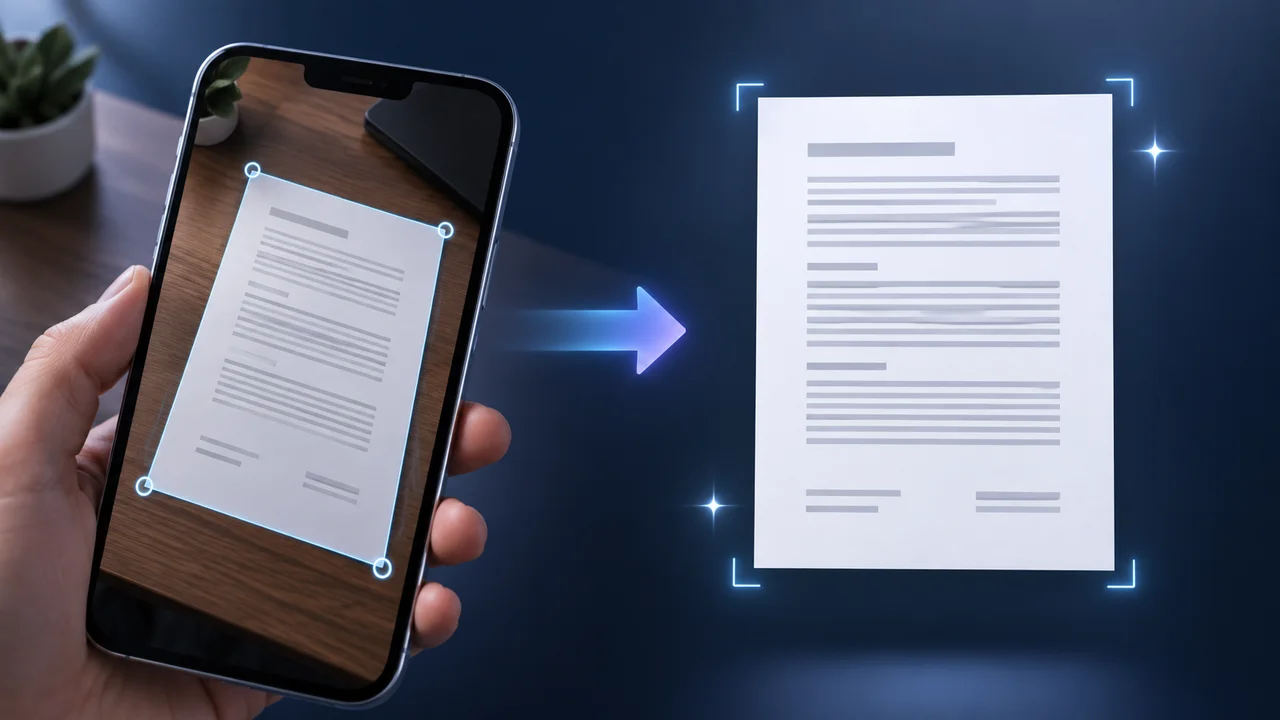
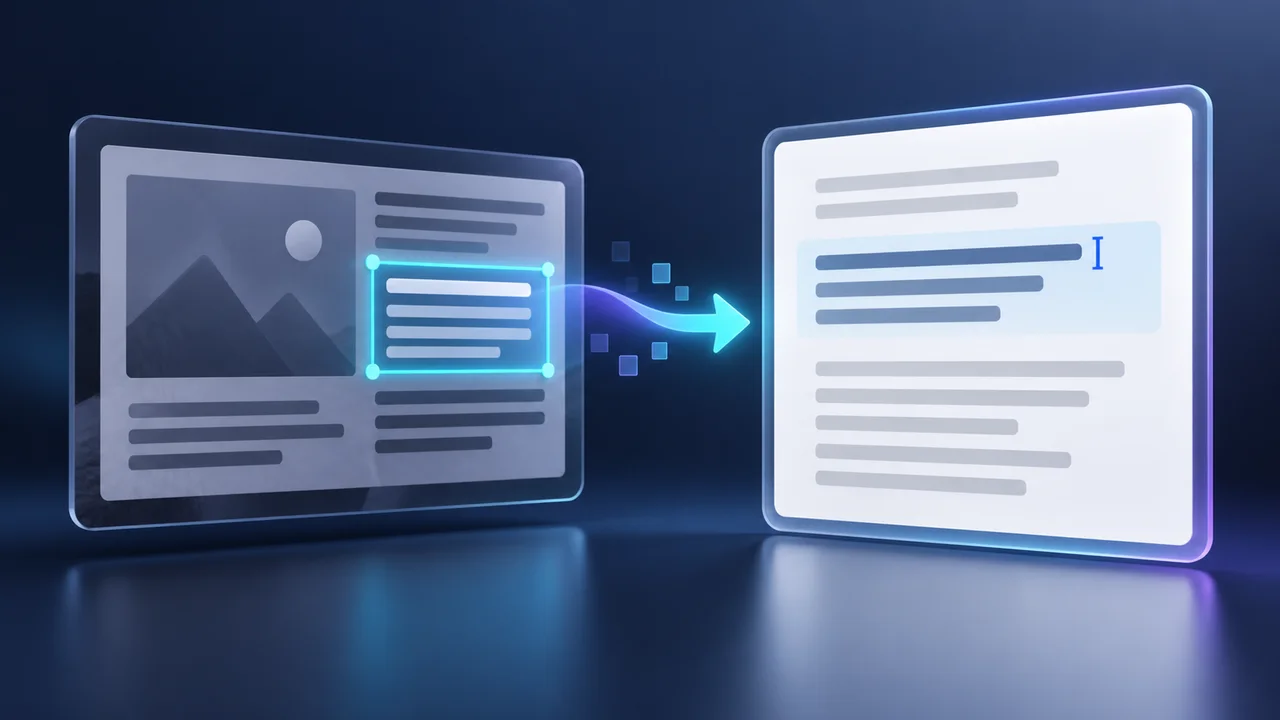
Run OCR on the cleaned image, or draw a box around one paragraph, receipt total, error message, or caption. The result stays editable and each detected line can point back to its image area.
Prepare only as much as the source needs, then check the OCR against the pixels.
Upload or paste the source. Leave a clean screenshot in Original color; for a photographed page, rotate it and align the four corners first.
Compare Original with Cleaned, then add only enough background lightening and text darkening to separate the page from its lighting. Black & white is optional, not the default.
Choose English, Simplified Chinese, or mixed recognition; run whole-image or region OCR; then correct names, amounts, punctuation, and line breaks before copying or downloading TXT.
Search-informed answers about screenshot OCR, document photo cleanup, perspective correction, privacy, and accuracy.
Upload, drop, or paste a PNG, JPG, or WebP. Keep a clear screenshot in Original color, or correct and clean a photographed page. Choose the language and whole-image or selected-region OCR, run recognition, then proofread the editable result.
Yes. Screenshot to text works best when the letters are sharp, large enough, and clearly separated from the background. A clean screenshot should not be changed to black and white by default.
Yes. Choose Selected region, drag a box on the cleaned preview, and run Image to Text on that crop. Region OCR is useful for one paragraph, receipt total, label, caption, or error message.
The first version supports printed English, Simplified Chinese, and English plus Simplified Chinese. Select the narrowest correct language option because loading and recognition can take longer for mixed text.
Browser OCR needs a recognition model for the selected language. The page waits to load Tesseract resources until you start recognition, so people who only clean a document image do not pay that loading cost.
Use a sharper source, keep text reasonably large, correct rotation and perspective, crop away unrelated content, and improve contrast gently. Compare with the original because aggressive black-and-white cleanup can remove faint punctuation or numbers.
It can map four real paper corners to a front-facing rectangle. Auto ratio estimates the rectangle from the photographed sides; A4 and US Letter should be chosen only when the physical source uses that page shape.
Yes. During cleanup and image perspective correction, switch between Original & corners and Cleaned image to judge whether background lightening, grayscale, or black-and-white processing removed useful detail.
No. Image editing and OCR run locally in the current browser tab. The site can still use normal analytics and advertising, but the selected image is not sent to an OCR server by this tool.
This first version does not promise handwriting recognition, complex formula conversion, table reconstruction, or original page layout. It is designed for printed lines that you can review and correct.
No. Brightness, contrast, grayscale, and perspective correction can make existing pixels easier to inspect, but they cannot recover detail that the source never captured. The tool does not invent missing characters.
Download the cleaned page as PNG, copy the corrected OCR result, or download it as TXT. You can also pass the cleaned image to annotation or actual-size printing without forcing an OCR step.
Straighten and clean photographed paper only when it needs preparation.
Extract, edit, and compare the recognized text without inventing unreadable details.
OCR is a draft. Always verify important names, totals, codes, and dates against the image.