Compare compressed images
Check whether a smaller file introduces visible blocks, ringing, blur, or changed transparency.
Quality controlVisual review and pixel difference checker
Compare two images side by side, with a slider, overlay or image difference checker. Switch to batch mode to find duplicate pictures and review similar versions.
Synced zoom and pan keep the same area in view. Image processing stays in this browser session.
Start with two images, or scan a batch and choose which versions to compare. Images stay in your browser.
Find duplicate pictures first, then review visually similar versions. Choose two images in a group to open Image Compare without uploading again.
Visual matches need your confirmation: even one changed digit in a screenshot or document can matter. Image Compare never chooses a version to keep based on resolution or file size.
The list includes filenames, dimensions, format, byte size, groups and your marks. The ZIP contains original files marked Keep, with numbered filenames to prevent collisions. ZIP limit: 128 MB of source files.
Scanning and exports run locally in this browser. Marks last for this session only. Original files on your computer are never modified or deleted.
Drop into either slot, or paste images from the clipboard; the first empty slot is used.
Use matching exports for the clearest slider, overlay, and pixel difference results.
Add Image A and Image B to begin.
Align two images and numbered difference areas will appear here automatically.
Pair the comparison with the tool that created the new image, then judge visual quality and technical changes separately.
Check whether a smaller file introduces visible blocks, ringing, blur, or changed transparency.
Quality controlUse overlay or the slider after replacing a color to catch missed edges and accidental edits.
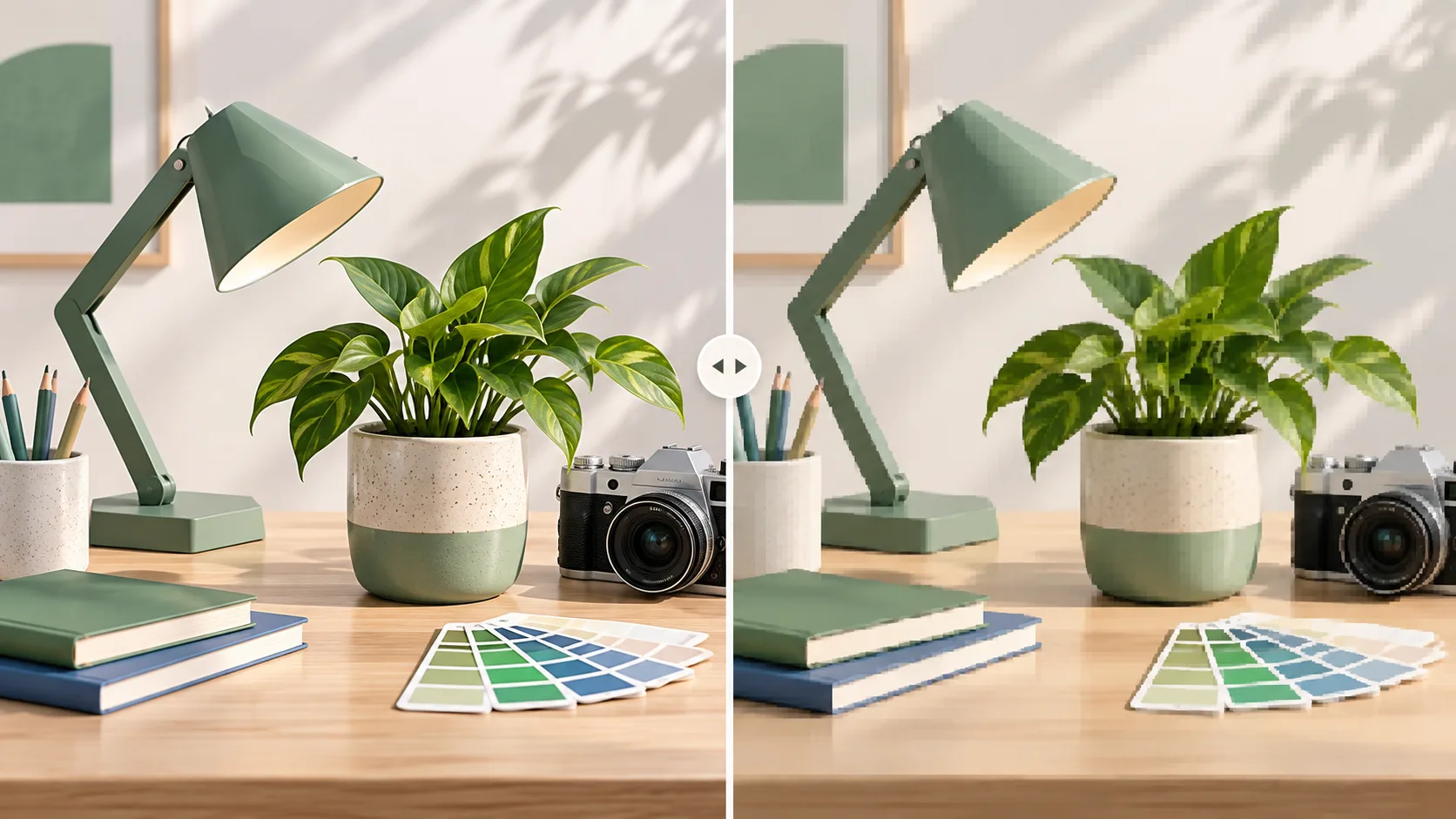
Color reviewReview the original and pixelated result together before using it in a design or sharing it.
Before and afterVisual inspection helps you understand a change; pixel statistics answer a narrower, technical question.
Start side by side for composition, then drag the slider across aligned images to inspect compression, pixelation, retouching, or design revisions at the same location.
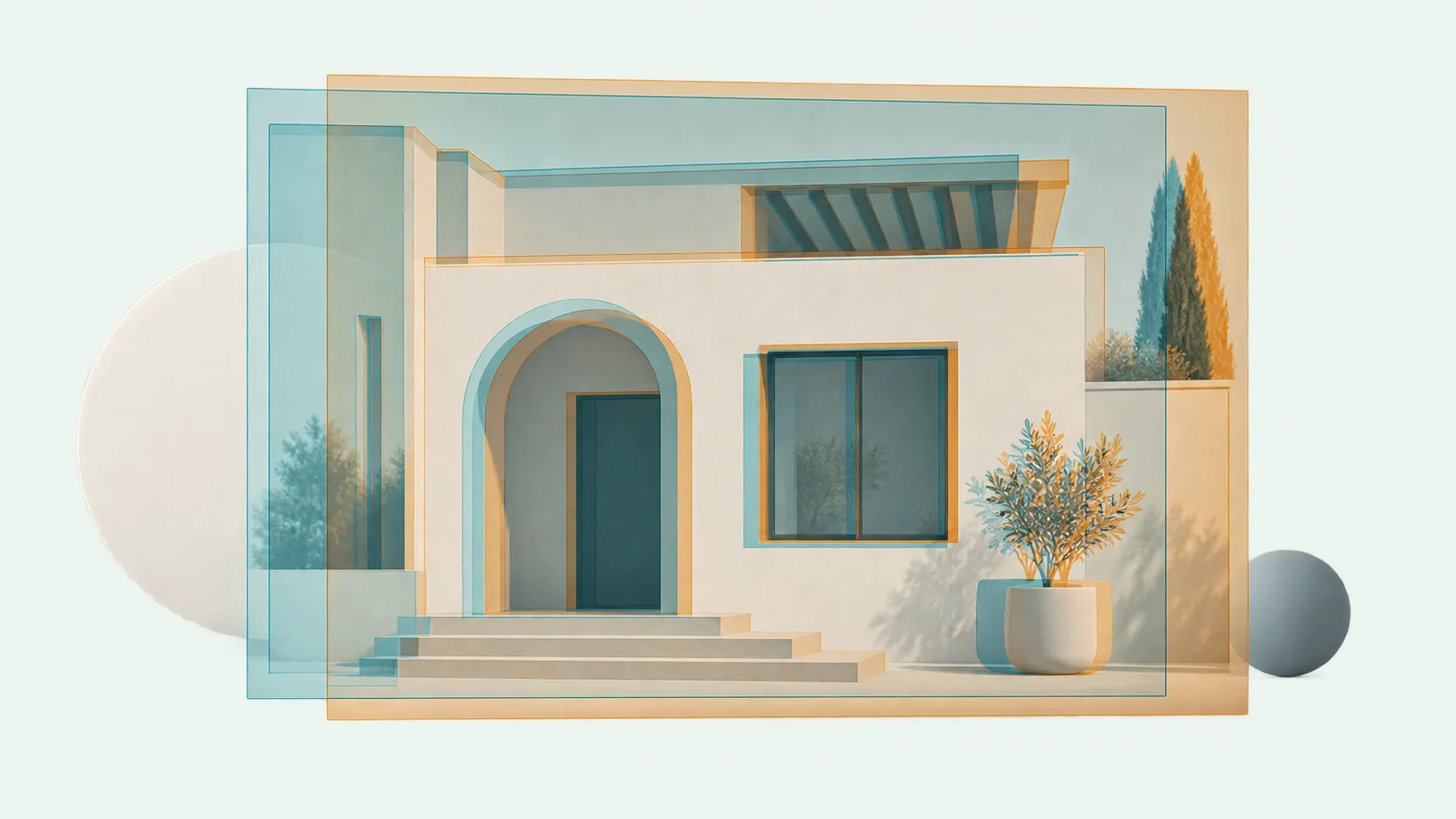
Adjust Image B opacity until doubled edges reveal moved objects, crop changes, typography shifts, or small registration errors that are hard to spot side by side.
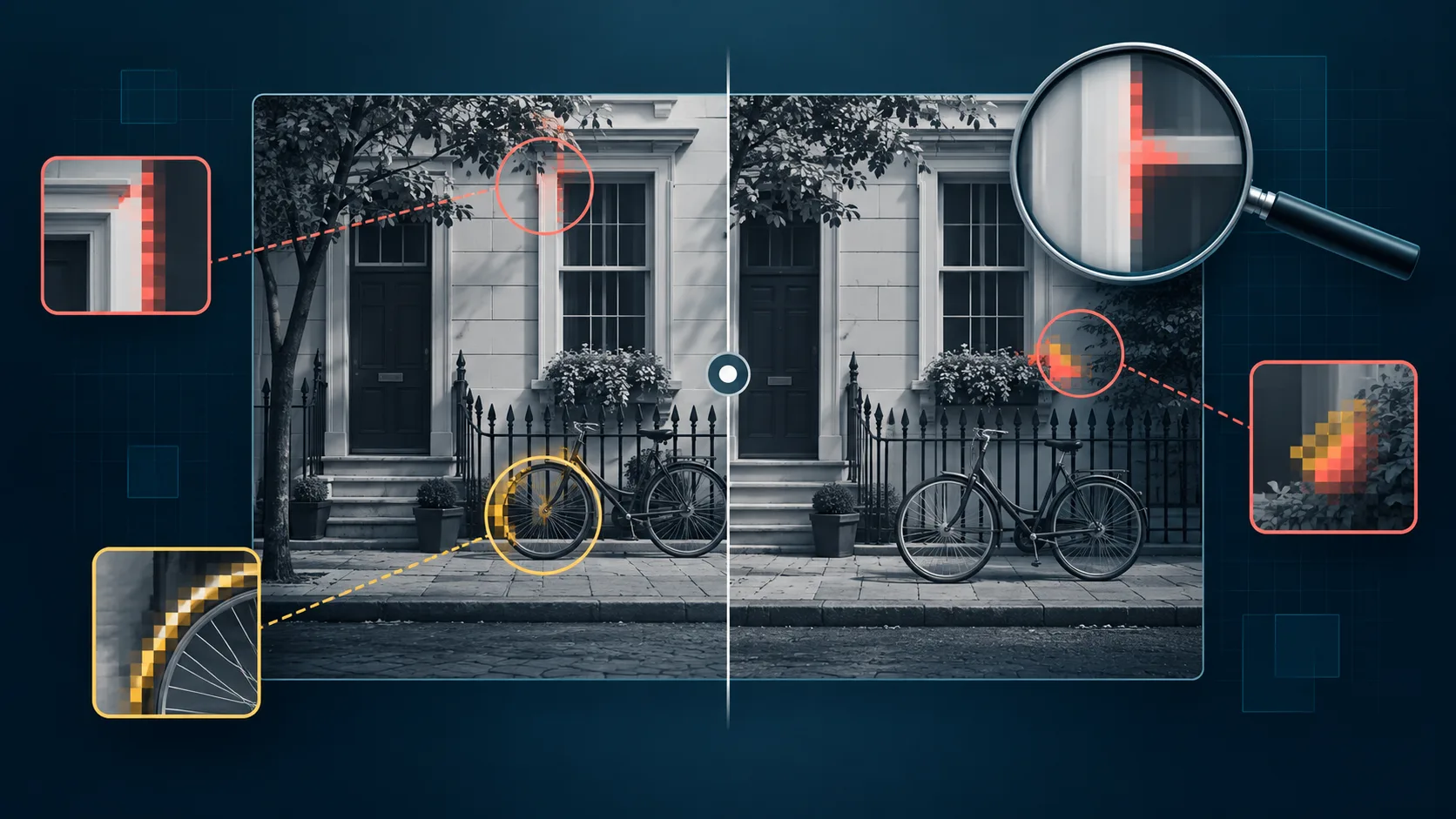
After alignment, set a tolerance, include or ignore alpha, draw excluded regions, and click a listed change to jump into a magnified difference view.
A reliable image diff starts with matching content and an explicit alignment choice.
Load the original as Image A and the newer export as Image B. Check their displayed dimensions before interpreting any result.
When dimensions differ, select a corner, edge, or center anchor and use pixel offsets for fine registration. The tool preserves each source size.
Use side-by-side, slider, and overlay views for human inspection. Use the image diff tool for changed-pixel counts under the chosen tolerance.
Answers based on common searches for compare two images, slider overlays, and pixel difference results.
Add Image A and Image B, keep Side by side selected, then use synchronized zoom and drag-to-pan so both versions stay at the same inspection position.
Yes. After both images are loaded and aligned, choose Slider and move the reveal control to sweep between the before and after versions.
Overlay is useful for registration checks. Adjust Image B opacity; doubled edges can reveal shifts in a crop, object, text block, or design element.
Tolerance is the allowed channel difference before a pixel is highlighted. Zero is strict; a higher value can suppress tiny color changes caused by compression or antialiasing.
Yes. Keep Compare transparency enabled to include alpha-channel changes, or turn it off when only RGB color channels should affect the changed-pixel count.
Image Compare asks you to choose an alignment anchor before slider, overlay, or pixel difference modes are enabled. It does not stretch either image to manufacture a match.
Yes. In Pixel difference mode, choose Draw ignore area and drag boxes over dynamic regions. Ignored pixels are removed from both the changed count and denominator.
Yes. The largest connected difference regions appear below the preview. Select Zoom, or click a highlighted region in the canvas, to center it at a magnified scale.
No. It only reports the share of compared pixels above your tolerance after exclusions. It does not model human vision and is not proof of authenticity, ownership, or privacy.
No. Image Compare exports generic image-compare-comparison.png and image-compare-difference.png filenames without drawing source filenames onto the result.
Yes. Switch to batch mode to group files with identical byte content using their size and SHA-256. Exact duplicates have a separate label from unconfirmed visual matches.
Image Compare samples color, transparency and visual structure to suggest versions with similar proportions. Small digit changes can still match; crops or rotations may be missed. Every visual result needs your review.
Scan a batch, select two thumbnails in a group, then enter the existing slider, overlay or pixel difference view. Image Compare keeps the batch and your marks when you return to its results.
No. Mark files Keep or Defer yourself; neither larger files nor higher resolution automatically wins. Export a JSON candidate list or a ZIP of your kept original files. The tool never deletes originals from your computer.
Review two versions visually with side-by-side, slider, or transparent overlay modes.
Switch to pixel differences only after dimensions and alignment are understood.
Image Compare is a quality-checking aid, not an authenticity, copyright, or privacy certification service.