PNG to JPG for photos and upload forms
Choose a quality level and decide exactly which color replaces transparent pixels. Inspect text and flat edges at 200% because JPG is lossy.
Quality + backgroundVerified browser image conversion
Use the Image Converter to identify the file bytes first, choose the output format, compare the real encoded size, and download a result whose format has been verified—not a renamed extension.
Local processing · Up to 20 still images · Every exported file is checked before download
Add one file or a batch. The Image Converter reports the detected format, pixel dimensions, file size, and transparency before it enables a verified conversion.
Add images to see an individual status and reason for every file.
Select JPG, PNG, or static WebP files. Choose any ready item to inspect it at fit, 100%, or 200% zoom.
PNG to JPG, JPG to PNG, WebP to PNG, and PNG to WebP solve different compatibility, transparency, and size problems.
Choose a quality level and decide exactly which color replaces transparent pixels. Inspect text and flat edges at 200% because JPG is lossy.
Quality + backgroundJPG to PNG stops further JPEG loss during this conversion, but it cannot restore detail or transparency already missing from the source.
Sharp edgesUse PNG for broad editing compatibility or WebP for compact web delivery. The Image Converter enables WebP only when a test export contains real WebP bytes.
Verified bytesA reliable convert image format workflow checks the source, makes format-specific decisions, and verifies the encoded download.
The Image Converter reads JPG, PNG, and WebP signatures before decoding. After export it checks the new signature and MIME type again, so a browser fallback to PNG cannot masquerade as WebP or JPG.
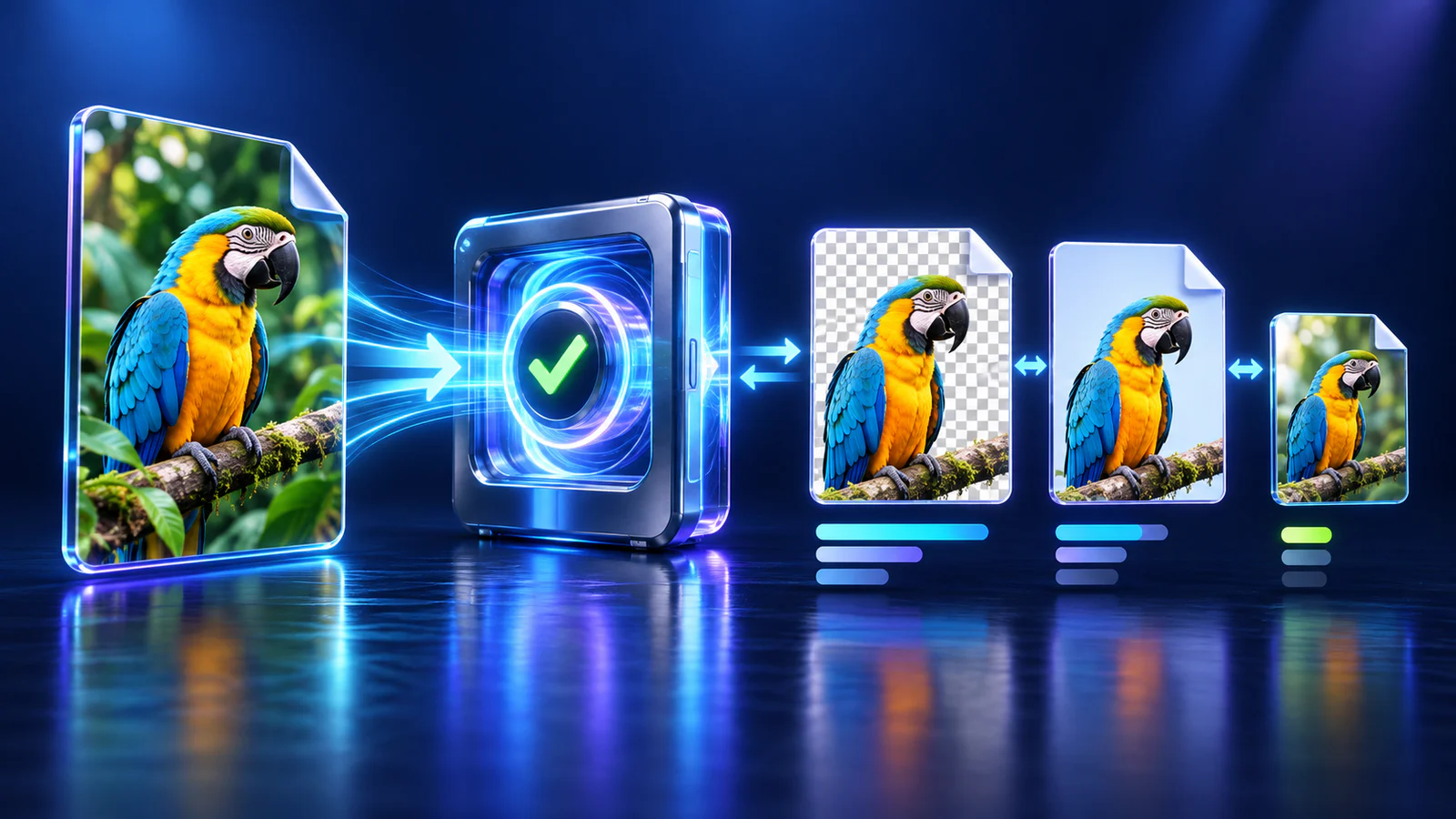
The Image Converter shows the original and converted image together, includes 100% and 200% inspection, and measures the real byte change. A larger output is reported honestly rather than treated as an error.
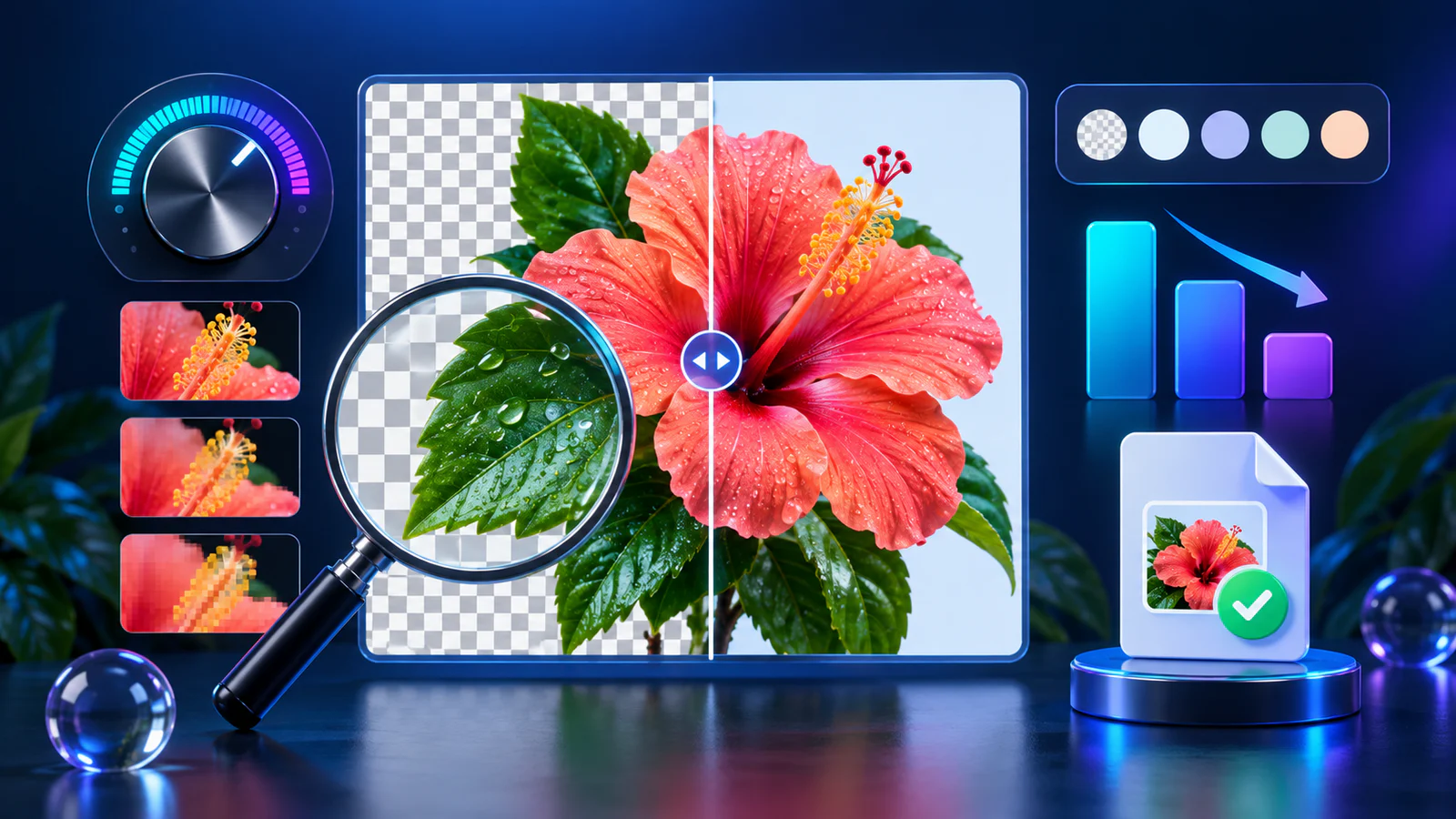
Three checks prevent the most common format-conversion surprises.
Add up to 20 still images. Confirm the detected format, dimensions, size, and transparency instead of trusting the extension.
Set JPG quality and background color, keep PNG transparency, or use WebP only when the browser encoder has passed the format test.
Run the batch, read each success or failure reason, compare file sizes, inspect edges at 200%, and download only verified outputs with your optional suffix.
Search-informed answers about PNG to JPG, JPG to PNG, WebP to PNG, PNG to WebP, transparency, quality, metadata, and batches.
Add the file, choose a target, and run the Image Converter. It decodes the source pixels, creates a new JPG, PNG, or WebP Blob, checks the output signature and MIME type, and enables download only when those bytes match the requested format. Renaming .png to .jpg does not perform this work.
JPG has no alpha channel. The Image Converter composites every fully or partly transparent pixel onto your selected background color before encoding. That choice is permanent in the new JPG, so keep the original PNG if you may need transparency later.
No. JPG to PNG creates a lossless PNG from the pixels the browser can decode, but it cannot reconstruct detail removed by earlier JPEG compression or recover an alpha channel that never existed. It can be useful when an editor requires PNG or when you want to avoid another lossy save.
Formats compress different content in different ways. JPG photographs often become compact, while a JPG to PNG conversion may grow because PNG preserves decoded pixels losslessly. A small flat-color PNG can also become larger as lossy WebP or JPG. Compare the measured sizes instead of assuming a new extension must be smaller.
Yes, for static files when the browser can decode the source. PNG to WebP is offered only after a test encode produces a Blob whose MIME type and signature are truly WebP. WebP to PNG uses the decoded still pixels and creates a verified PNG.
This browser Canvas workflow does not copy source EXIF, GPS, IPTC, XMP, comments, or original print-resolution metadata into the new file. It preserves visible decoded pixels and pixel dimensions. Treat the downloaded file as a new asset and separately review its appearance, filename, and sharing destination.
No. The first version detects animation chunks in PNG and WebP and reports an individual failure. It does not quietly capture the first frame and claim the animation converted successfully. Use a frame-aware animation tool when timing and every frame need to survive.
Yes. Add up to 20 still images, choose one shared target and its settings, then run the batch. Each image keeps its own detected properties, result size, success state, download button, or exact failure reason. One bad file does not hide the successful outputs.
The image decoding, Canvas rendering, encoding, comparison, and download happen in the current browser session; the tool does not intentionally send image files to a conversion server. The website can still load normal page resources, ads, and analytics, and files you later share follow that service's policies.
Choose JPG for opaque photographs when broad compatibility and adjustable lossy quality matter. Choose PNG for transparent logos, screenshots, text, and sharp graphic edges. Choose verified WebP for modern web delivery when its size-to-quality balance and optional transparency fit the destination.
Inspect the true source format, transparency, dimensions, and size before conversion.
Compare every output and download only files whose JPG, PNG, or WebP bytes passed verification.
Static JPG, PNG, and WebP only; animated PNG and WebP are clearly rejected.