Join screenshots into one long image
Stack several issue states, chat excerpts, or tutorial steps from top to bottom. Crop unrelated bars from each source, then use a small gap or zero gap when the edges already line up.
Screenshot joinerPrivate image combiner and screenshot joiner
Combine images into one clear PNG for a bug report, step-by-step guide, before-and-after comparison, pixel art reference, or group of screenshots. Arrange every file without stretching its proportions.
Add, remove, crop, and reorder multiple JPG, PNG, WebP, or GIF files. Image processing stays in this browser tab.
Choose vertical stacking or a horizontal row, drag files into order, match widths or heights, adjust spacing, and inspect the exact output dimensions before downloading.
The combined preview will update after every layout, order, crop, spacing, background, and output-size change.
Very long or wide results can exceed the canvas limit for your browser and device. Auto output size reduces the result proportionally when needed; it never stretches one axis. Read about browser canvas limits on MDN.
A simple image merger is useful beyond photo collages: organize evidence, instructions, comparisons, and pixel art references without creating a design document.
Stack several issue states, chat excerpts, or tutorial steps from top to bottom. Crop unrelated bars from each source, then use a small gap or zero gap when the edges already line up.
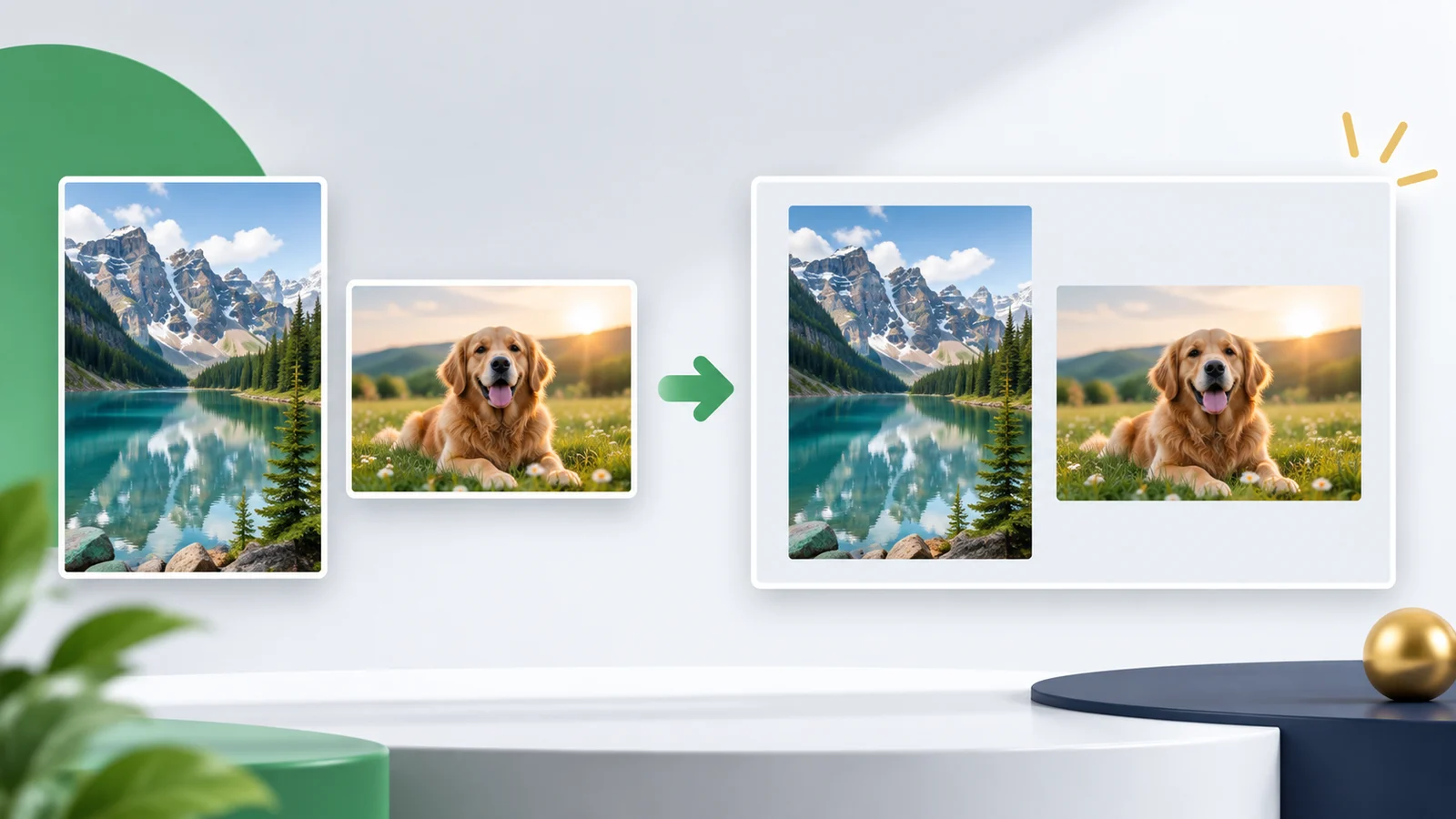
Screenshot joinerUse a horizontal row for before-and-after results, design alternatives, product details, or two pixel art versions. Matching heights keeps the comparison balanced without distorting either source.
Side by sideRemove or cover private content first, add arrows or numbered steps second, and join only the flattened safe screenshots. A final check at 100% zoom helps catch readable names or tokens.
Privacy workflowThe two main layouts cover long screenshot stories and compact comparisons while preserving the proportions of every source.
Match widths when screenshots came from different windows, drag them into reading order, and crop browser bars or repeated navigation manually. Set spacing to zero only when the remaining edges genuinely belong together. This is controlled stacking, not automatic overlap detection.
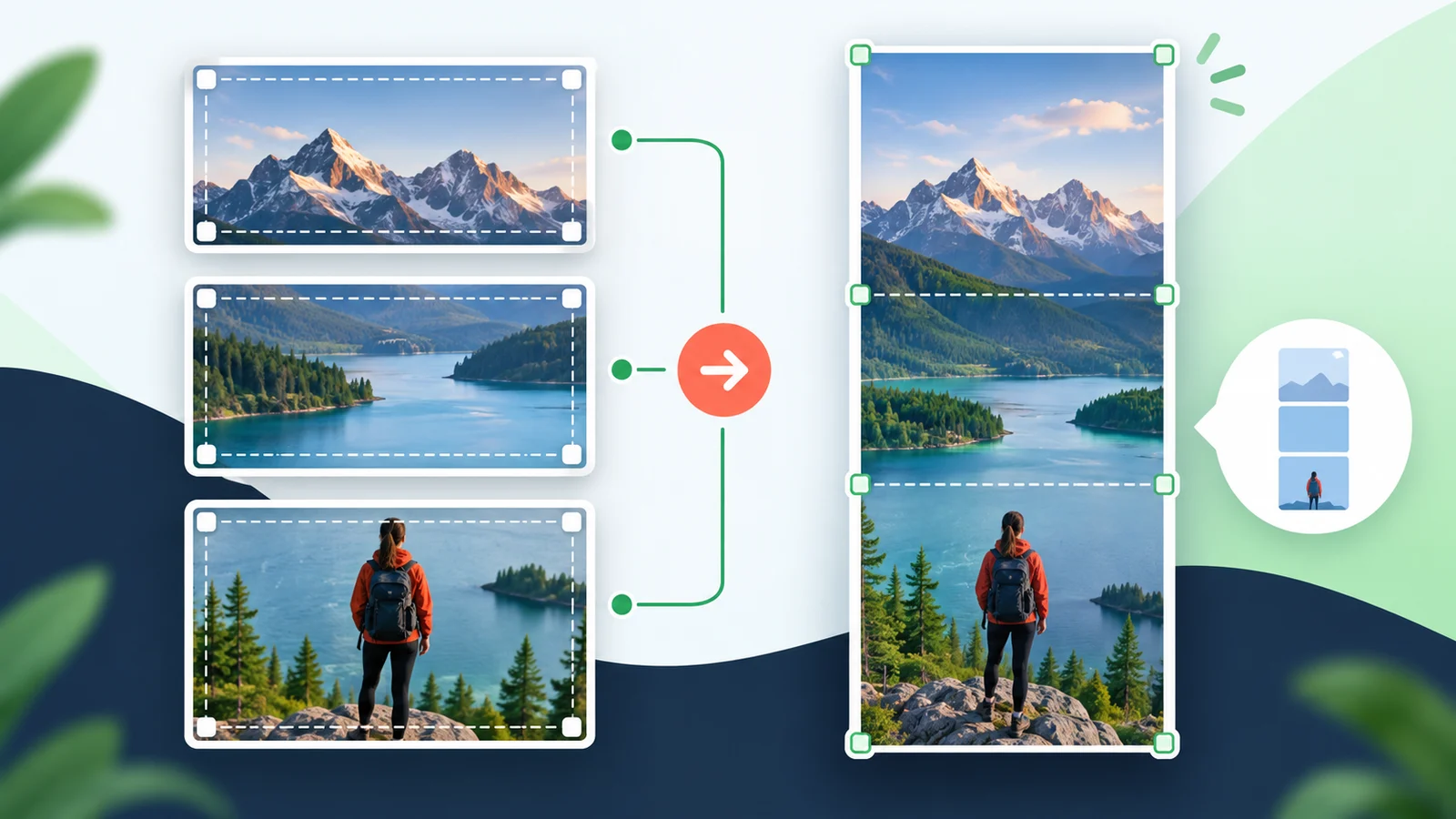
Match heights proportionally for a neat comparison, or retain original sizes and use top, center, or bottom alignment. Background color, outer margin, and the gap create breathing room when portrait and landscape sources do not fill the same rectangle.
Use this short process to combine images in the intended order and keep text, proportions, and output limits under control.
Select several files at once, drop another group later, or paste copied images. Choose vertical for a top-to-bottom narrative and horizontal when viewers should compare sources in one glance.
Trim a toolbar, empty edge, or repeated footer from each selected source. Match widths for a vertical stack or heights for a horizontal row. Scaling remains proportional, so circles stay round and screenshot text is not stretched.
Check the final width and height, raise preview zoom to inspect small text, then download the PNG. If the browser cannot support the requested canvas, choose Auto or a smaller percentage to reduce both axes proportionally.
Answers based on common searches for an image combiner, online image merger, side-by-side maker, vertical photo joiner, and screenshot joiner.
Add at least two files, choose Horizontal, drag them into left-to-right order, and select Match heights proportionally for an even row. Adjust the gap, background, margin, and top, center, or bottom alignment before downloading one PNG.
Choose Vertical and arrange the list from top to bottom. Match widths proportionally when sources have different widths, or preserve their original pixel sizes and align them left, center, or right. The preview reports the total long-image dimensions.
No. The tool does not inspect images for repeated rows or automatically remove overlaps. Crop duplicated browser bars, navigation, or repeated screenshot content yourself, set the spacing, and inspect every boundary. Calling ordinary stacking an automatic seamless screenshot would be misleading.
No. Matching width or height always uses one proportional scale factor for both axes. Original size mode performs no resizing. When the sources leave unused space, alignment and the chosen background color fill the canvas instead of distorting image content.
Yes. Select a row and enter how many original pixels to remove from its top, right, bottom, or left edge. Cropping is non-destructive during the session: change the values or use Reset crop to recover the original image area before export.
Yes. Add more files with the chooser, file drop, or clipboard at any time. Remove a single row, drag rows into a new sequence, or use the up and down buttons. The preview updates immediately and uses that exact order.
No. Both options are off by default so the output contains only the images you selected. Turn numbers on when order matters. Turn captions on and enter a short caption for a selected row only when readers need extra context.
Canvas limits vary by browser and device. The Auto setting estimates a safe size and reduces width and height together when the full layout is too large. If a manually chosen percentage exceeds the detected limit, download stays disabled and the tool offers a safe Auto option.
No image file is uploaded for combining. Decoding, cropping, arrangement, preview, and PNG export happen in the current browser tab. The wider website still uses ads and analytics, so this privacy statement applies specifically to the image-processing workflow.
When people search merge images online, they usually want to combine images into one file. You can add JPG, PNG, WebP, and GIF files that your browser can decode. Animated GIFs are treated as a rendered still image. The PNG download keeps screenshot text, sharp edges, and small annotations crisp.
Arrange screenshots vertically for a guide or put images side by side for an honest comparison.
Preserve aspect ratios, inspect the final pixels, and use safe proportional scaling when the canvas would be too large.
Manual cropping and alignment are included; automatic overlap detection and collage templates are not.