Edit a pixel art bead pattern cell by cell
Pick a palette symbol to recolor one placement, drag to correct an edge, or erase a cell so it clearly means no bead.
Manual controlCraft-ready photo to bead pattern tool
Keep the warmth of a portrait and the shape of small details. Create a square-grid bead pattern with colors drawn from your photo, refine individual cells, and take a counted, measured chart to your craft table.
The Bead Pattern Maker processes the image in your browser; transparent cells stay empty and never enter the material count.
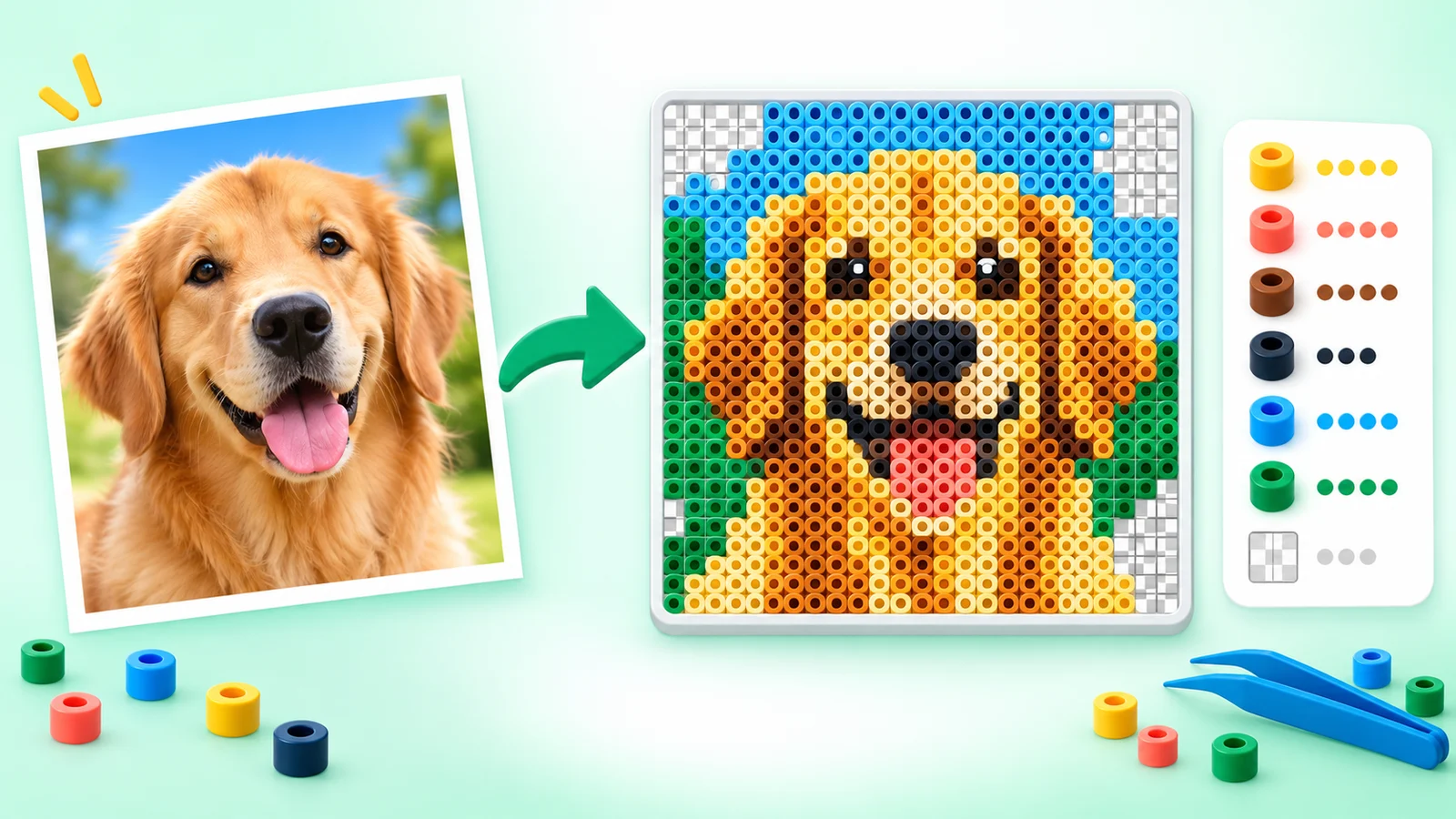
Start with a detailed 87 × 87 grid and up to 24 photo-matched shades. Adjust the crop and color count, compare the original, then refine your pattern in bead, color, or symbol view.
Choose a clear photo or illustration. We will sample its colors and preserve details on a finer grid; each colored cell becomes one bead placement.
Choose a color and drag to paint. Erase leaves an empty position; Pick color samples a placed bead. Zoom in for single-cell corrections.
Your Bead Pattern Maker is ready. Choose an image to begin.
Each PNG includes a color key and bead counts. Choose the bead preview for a finished look, or the color and symbol charts for checking placements.
| Symbol | Screen color | Count |
|---|
Measure center-to-center spacing on your board or beads. Do not infer it from a brand name.
Large board sections continue across numbered A4 or Letter sheets at the measured pitch. Whole-pattern and section materials are printed on separate list pages.
Before printing, choose 100% or Actual size in the print dialog. Measure the 50 mm calibration line; if it is not 50 mm, correct the printer scaling before placing a clear pegboard over a sheet.
No photo upload is required for conversion: processing stays in this browser session. Ads and site analytics may still be present on the page.
Natural photo shades, an editable chart, and counted materials help you plan a pattern that looks good and is practical to make.
Pick a palette symbol to recolor one placement, drag to correct an edge, or erase a cell so it clearly means no bead.
Manual controlThe material table totals each used screen color and excludes transparent positions from the material list.
MaterialsSet the board row and column capacity to create labeled sections with global coordinates and per-section quantities.
Large projectsGive small features enough cells, keep useful shades, and check the result before sorting your beads. The illustrations below show the workflow; your result depends on the source image and settings.
The Bead Pattern Maker samples a balanced palette from your photo instead of forcing every image into the same bright colors. Start at 87 × 87 cells with up to 24 shades, then adjust the crop, detail, and color count. Check the bead preview, compare the original, and refine eyes, edges, or isolated cells by hand.
Set the actual center-to-center grid pitch, board capacity, and A4 or Letter paper. The Bead Pattern Maker prepares references, numbered section sheets, separate material lists, and a 50 mm calibration mark. A board that exceeds one sheet is tiled at the same measured scale, ready for browser printing or PDF saving.
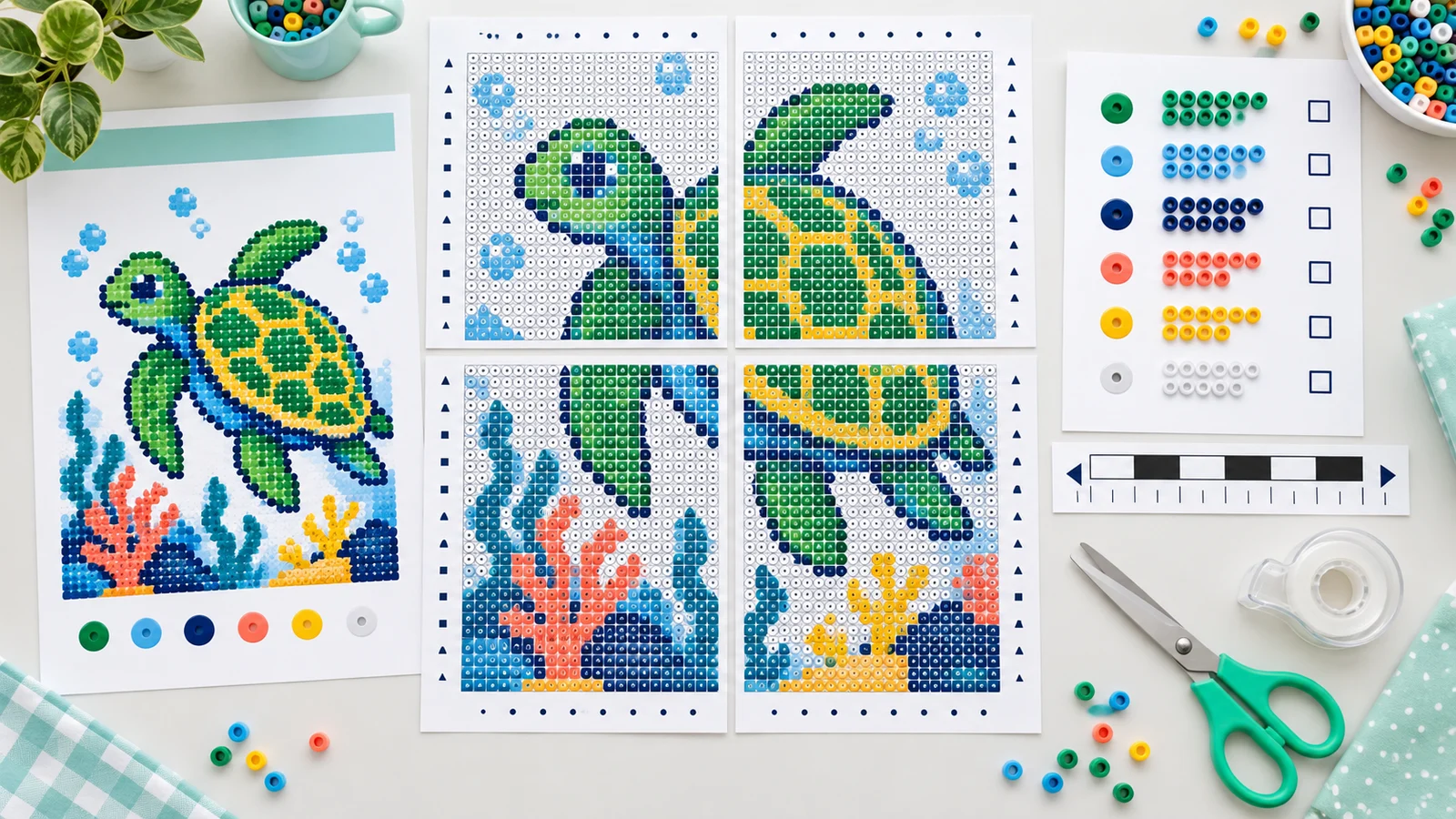
Start with the physical constraints of the project, then tune the picture until every cell has a clear purpose.
Import a clear image and start with the detailed preset. Keep the whole picture or fill the grid and reposition the crop. Use photo colors for a natural starting point, or your own palette when your bead supply is fixed.
Apply the settings, compare the original, and switch between bead, color, and symbol views. Zoom in to paint or erase individual cells, pick an existing color, and use Undo if a correction or color merge loses detail.
Transparent positions stay empty and never enter bead totals; the symbol chart marks them with ×.
Enter the board capacity and measured millimeter pitch, review per-section materials, then print at 100% or Actual size and measure the 50 mm line before assembly.
Open print controlsChoose a photo to bead pattern setup that keeps useful details, fits your supplies, and prints at the right size.
A Bead Pattern Maker converts the picture to a square grid using photo-matched shades or your own palette. You can inspect a dimensional bead preview, edit the color or symbol chart, count placed beads, and print numbered board sections at a measured pitch. The preview is a visual aid; it does not simulate the final fused finish.
Use a well-lit subject, crop closer to remove distractions, and start with the 87 × 87 detailed preset and 24 photo colors. Try 116 × 116 for small facial features or more shades for subtle fur and skin tones. Increase smoothing gently to reduce specks, then compare the original and correct important cells. Conversion preserves the source composition; it does not redraw the photo as an illustrated character.
No. The palette uses editable screen colors and does not claim official brand names or color numbers. Match swatches to materials you actually own, and expect physical beads to vary with batch, lighting, monitor settings, and finish.
Yes. Import pixel art, set the output grid to the intended bead dimensions, and check the result cell by cell. Resampling can alter tiny source pixels, so manual correction remains important for outlines and single-pixel details.
No. Transparent or erased cells remain empty positions, marked with × in the symbol chart. The whole-project and section material lists exclude them. An opaque photo background still contains visible pixels; crop it or erase unwanted cells if you do not want beads there.
Enter how many columns and rows fit on one square board. The bead pattern generator divides the full grid into labeled sections such as A1 and A2, reports their global column and row ranges, and calculates material use for each section.
Measure the real center-to-center spacing in millimeters on the pegboard or materials you plan to use. Enter that number directly; do not guess from a bead name. The printed cell width and height follow this measured pitch.
Browsers and printer drivers can shrink pages to fit. Select 100% or Actual size, print a test page, and measure the line. If it is not exactly 50 mm, fix the scale before relying on an actual-size overlay.
Yes. Choose A4 or Letter, select Print pattern pack, then choose Save as PDF in your browser. The pack contains overview references, actual-size symbol sheets, calibration, and separate whole-project and section material lists. Large boards continue across numbered sheets without changing the pitch. You can also download bead, color, or symbol PNG sheets with a color key and counts, plus a materials CSV.
Find a photo palette that keeps the details you love, or generate with your available bead colors.
Refine the chart, export a clear reference, and check the printed calibration mark before placing beads.
Screen color is an approximation. This tool does not promise an exact match to physical materials or provide unverified brand codes.