Blur face online manually
Draw boxes over each face so you can review what was masked.
Manual reviewManual face privacy editor
Use this blur face online tool to manually select faces or people in an image, adjust masking strength, and download a privacy-conscious PNG.
Manual selection keeps you in control and avoids assuming automatic face detection caught everything.
Upload a photo, draw boxes around faces or identifying regions, choose blur strength, and export the edited PNG.
Upload a photo, then drag boxes over faces or other identifying details.
Tip: draw boxes over every face or identifying detail, then review the full image before downloading.
Tip: draw boxes over every face or identifying detail, then review the full image before downloading.
Faces, screenshots, and sensitive text often require different privacy choices.
Draw boxes over each face so you can review what was masked.
Manual reviewUse region pixelation when you prefer a blocky face mask instead of blur.
Blocky maskUse screenshot blur for UI images, chats, dashboards, or copied screen captures.
ScreenshotsManual review is important because a missed face is still visible in the final image.
Draw boxes over faces, badges, and other identifying details before posting photos from events, classrooms, or public spaces.
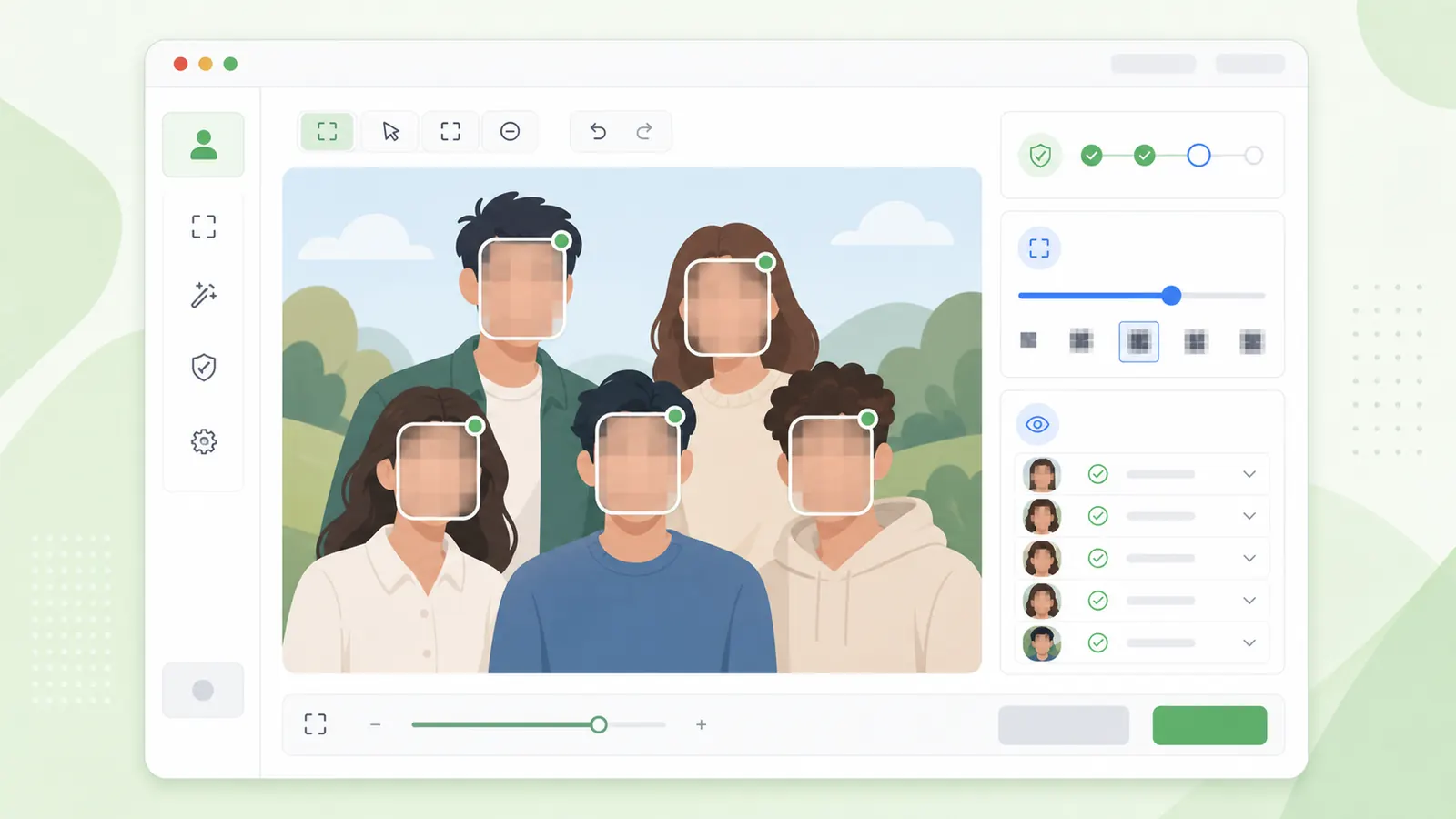
Inspect the full image after masking, including reflections, background people, name tags, and profile images.
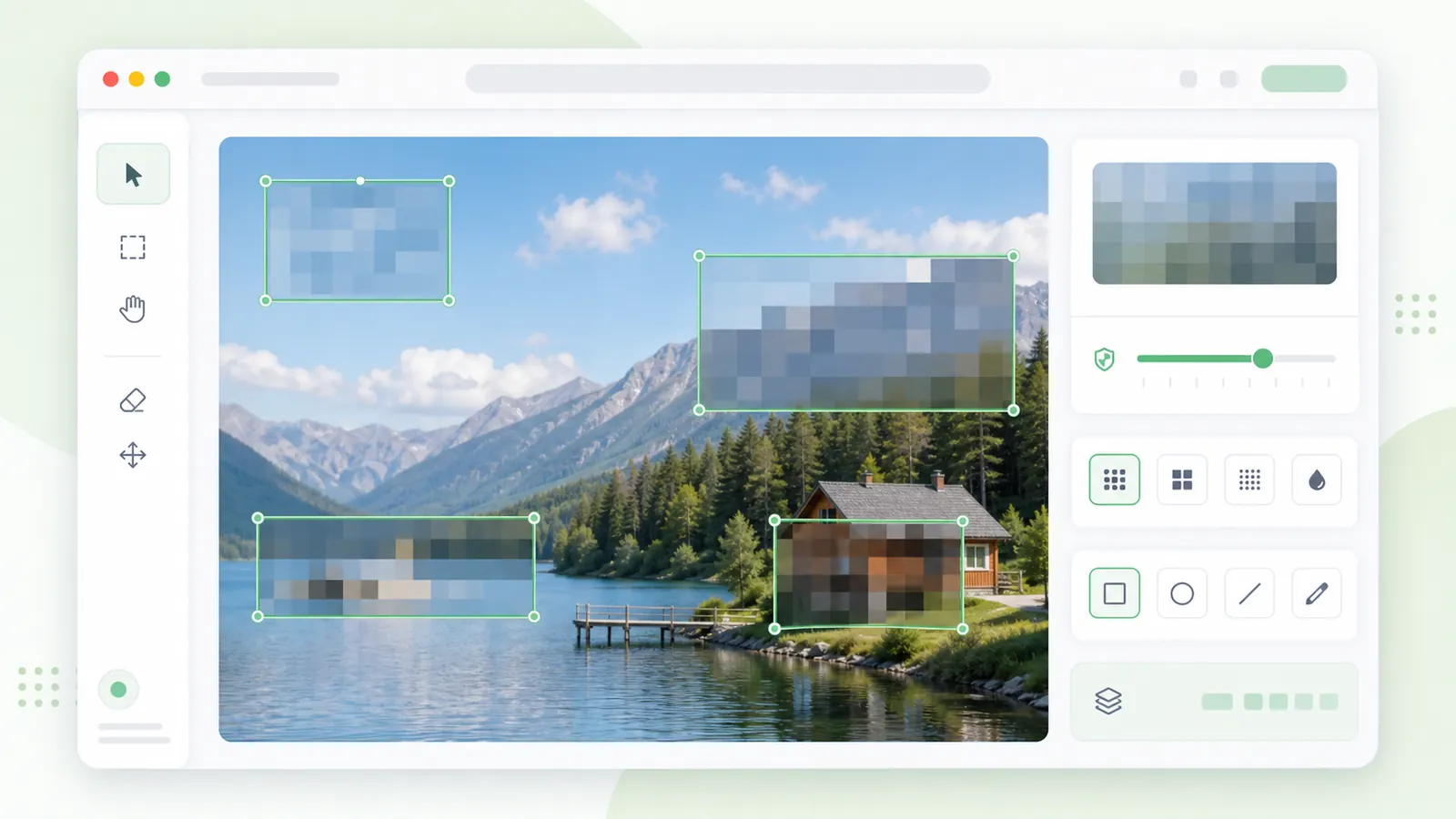
Face masking works best when you review the whole image, not only the obvious subject.
Look for every visible face, reflection, badge, name tag, and profile photo before selecting regions.
Increase strength until the person is no longer recognizable at the size where the image will be shared.
Download the PNG only after confirming all faces and identifying details are covered.
Questions about manual face masking.
This version uses manual selection so you decide which faces or identifying details need masking.
Yes. The tool includes blur, pixelate, and redaction modes for selected regions.
Use solid redaction when a region contains highly sensitive identity details or private records.
Upload a photo, select every face or identifying region, and download the PNG.
Review the full image so background faces are not missed.
Manual review is part of the privacy workflow.